eXeLearning in OneDrive
eXeLearning for OneDrive lets you open, edit and create eXeLearning resources (.elpx)
stored in your Microsoft OneDrive. There is nothing to install: it runs in the browser and files never
leave OneDrive.
For administrators
Nothing to install. Every teacher can use the public app at https://exelearning.github.io/onedrive-exelearning/ with a Microsoft account: a Microsoft 365 account from their school or a personal one. It is free and needs no server.
Check your Microsoft 365 tenant
The first time someone signs in, Microsoft asks them to accept the app's permissions (read and write their OneDrive files, and their name). If your tenant does not let users consent to apps, a Microsoft Entra administrator must grant admin consent to onedrive-exelearning for the whole organisation. Otherwise teachers see a "Need admin approval" message when they sign in.
Host your own copy (optional)
An administration can run its own copy instead of the public one, for example to limit sign-in to its own Microsoft 365 tenant and grant consent once for every teacher. The app is a static website, so any web server works. You need:
- An app registration in the Microsoft Entra admin center, with your copy's address as a single-page application redirect URI.
- The delegated Microsoft Graph permissions
Files.ReadWrite,User.Read,openidandprofile. For a single-tenant copy, click Grant admin consent so teachers are not asked. - The app's client ID and tenant in the build settings.
The self-hosting guide has every step.
For teachers
Requirements
- A Microsoft account (Microsoft 365 from your school, or personal) with OneDrive.
- An up-to-date browser that allows pop-up windows from the app (for signing in).
Getting started
- Go to https://exelearning.github.io/onedrive-exelearning/.
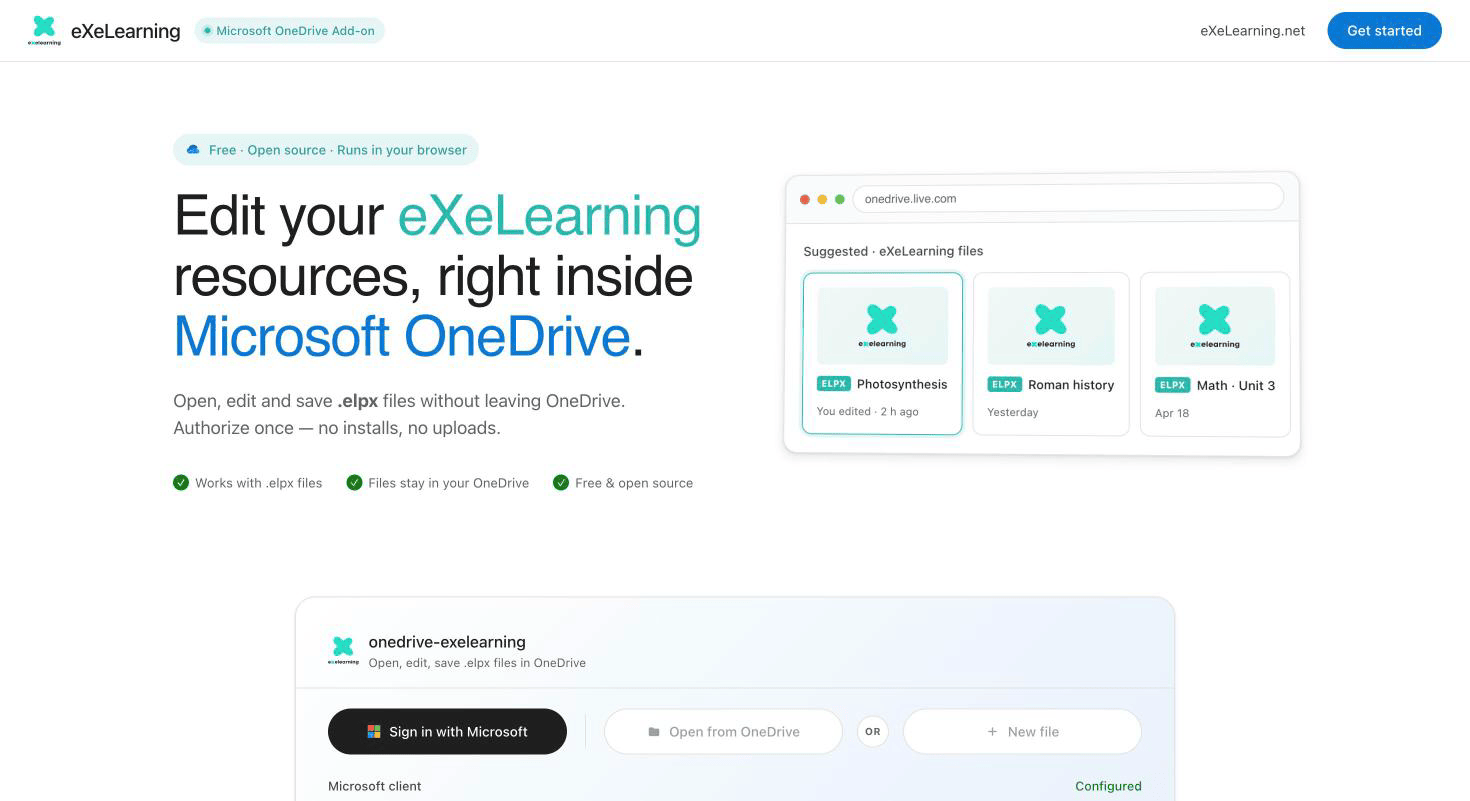
- Click Sign in with Microsoft, choose your account and accept the permissions.
Unlike Google Drive
OneDrive does not add eXeLearning to its own menus. You always start from the app's page: bookmark it.
Open a resource
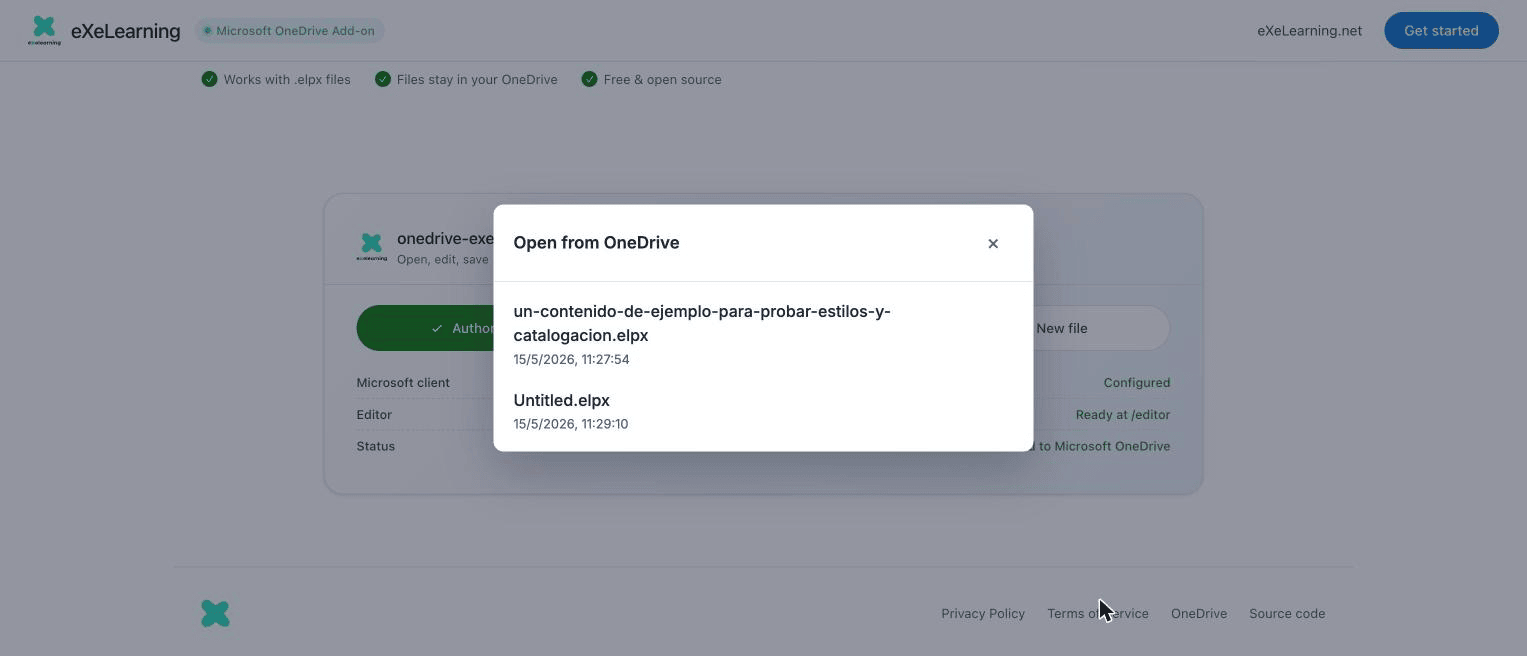
Click Open from OneDrive and choose an .elpx file from the list.
A preview of the resource appears, ready to browse. Click Edit in eXeLearning to edit it.
Edit and save
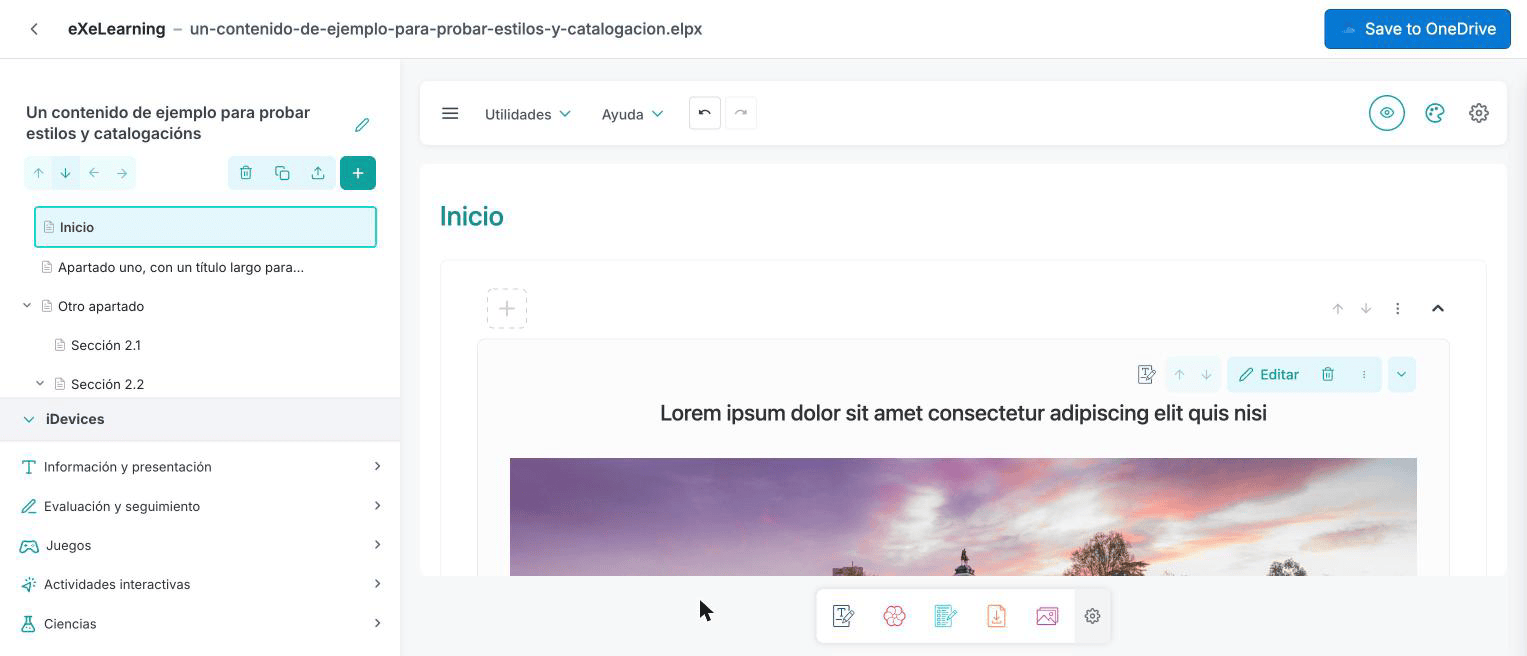
When you are done, click Save to OneDrive (or Ctrl/Cmd + S). The file is updated in OneDrive.
- If someone changed the file while you were editing, you can overwrite it, save a copy or cancel.
- Old
.elpfiles are saved as a new.elpxnext to the original.
Create a new resource
Click New file. An Untitled.elpx file is created in your OneDrive and opens in the editor.
Rename it from OneDrive whenever you like.
Share
Use OneDrive's Share button, as with any other file.
Language
For now this app's own screens are in English only. The editor uses your language.