eXeLearning in Google Drive
eXeLearning for Google Drive lets you open, edit and create eXeLearning resources (.elpx)
stored in your Drive, and share them with students through a public link. There is nothing to
install: it runs in the browser and files never leave Drive.
For administrators
Nothing to install. Every teacher can use the public app at
https://exelearning.github.io/gdrive-exelearning/ with their own Google account, including Google
Workspace for Education accounts. It is free, needs no server and only accesses the files each person
opens or creates with it (drive.file permission).
Check your Google Workspace domain
If your domain restricts third-party apps, a Workspace administrator must allow eXeLearning in the Google Admin console (Security → Access and data control → API controls → Manage third-party app access). Otherwise teachers see an error when they authorize it.
Public links for students need files to be shared as Anyone with the link. If your domain does not allow sharing outside the organization, teachers get an error when they create one; they can still share files with people in the domain from Google Drive.
Host your own copy (optional)
An administration can run its own copy instead of the public one, for example to show its own name on the consent screen or to limit sign-in to its domain. The app is a static website, so any web server works. You need:
- A Google Cloud project with the Google Drive API enabled.
- An OAuth consent screen with the
drive.fileanddrive.installpermissions, and an OAuth client ID for your website's address. - The Drive UI integration pointing to your copy, so that eXeLearning appears in Drive's Open with and New menus.
- An API key restricted to the Google Drive API and to your website, used by the public view. Without it, the Share public link button stays disabled.
The self-hosting guide has every step.
For teachers
Requirements
- A Google account (personal or from your school).
- An up-to-date browser.
Getting started
- Go to https://exelearning.github.io/gdrive-exelearning/.
- Click Connect Google Drive and accept the permissions. This adds eXeLearning to Drive's Open with and New menus.
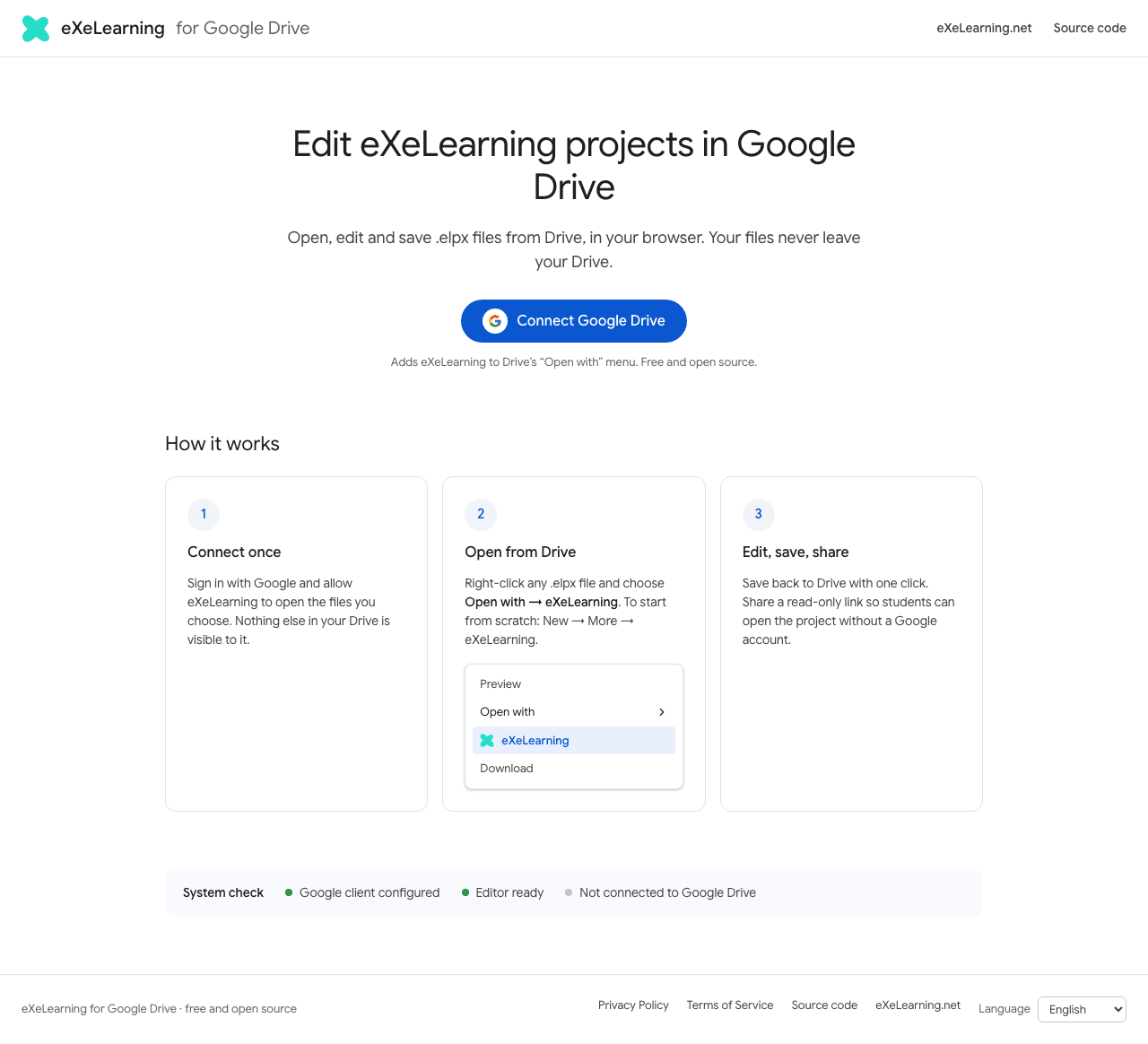
Permissions it asks for
It only accesses the files you open or create with eXeLearning (drive.file permission), not your
whole Drive.
Language
The app is available in the same languages as eXeLearning. It uses your browser's language; to change it, pick another one in Language at the bottom of the home page. Drive's menus follow your Google account's language, and the editor keeps the language set in its own preferences.
Open a resource
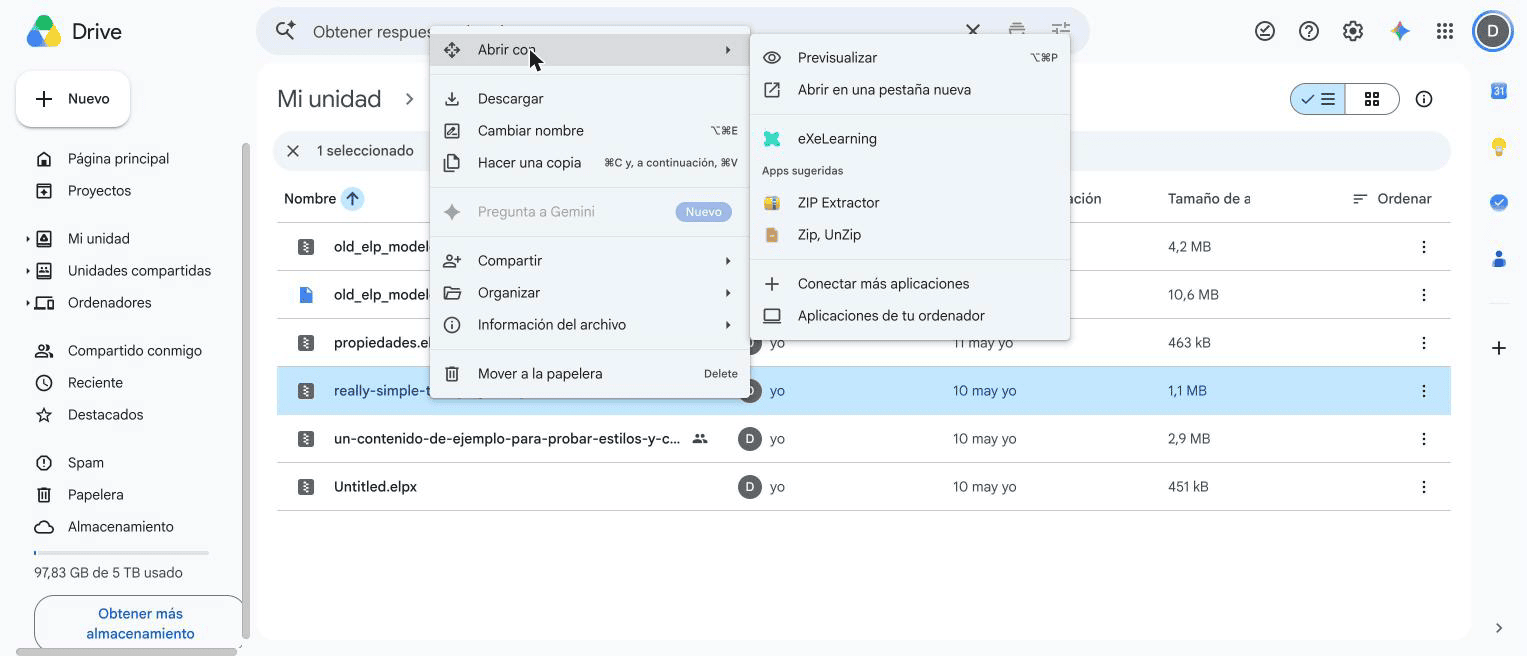
In Google Drive, right-click an .elpx file and choose Open with → eXeLearning. The first time,
click Authorize and open.
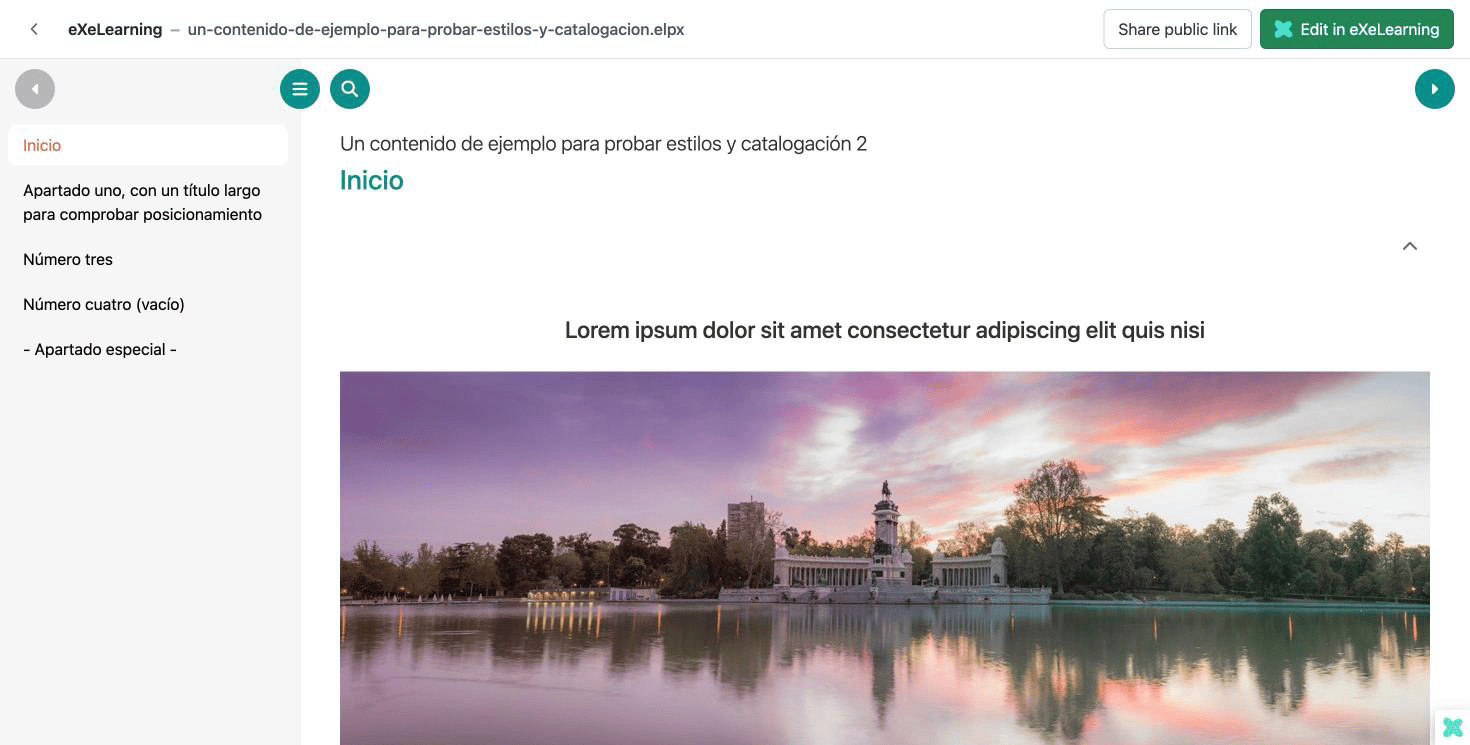
A preview of the resource appears, ready to browse. Click Edit in eXeLearning to edit it, or Share public link to share it with your students.
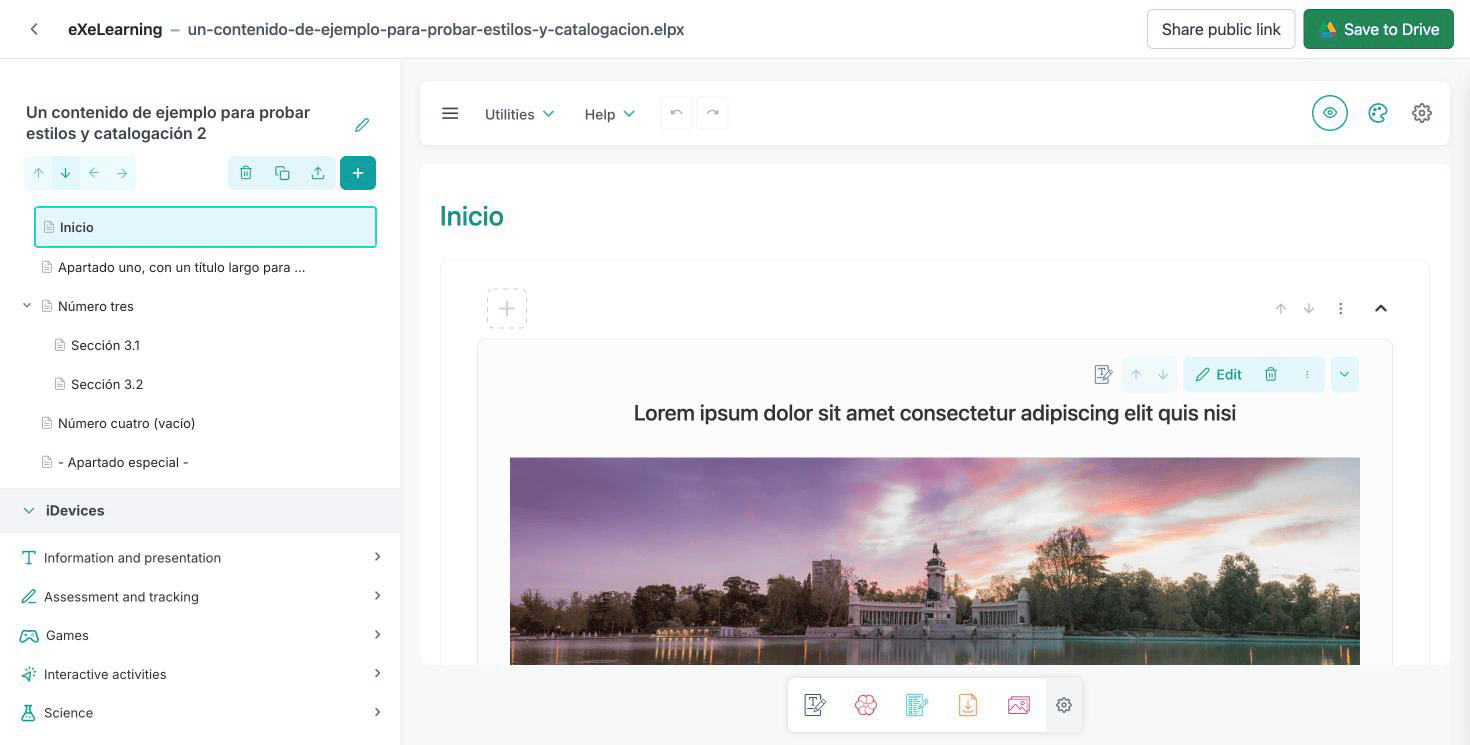
Edit and save
The editor opens in the same tab. When you are done, click Save to Drive (or Ctrl/Cmd + S). The file is updated in Drive, thumbnail included.
- If someone changed the file while you were editing, you can overwrite it, save a copy or cancel.
- Files you can only view open read-only.
- Old
.elpfiles are saved as a new.elpxnext to the original.
Create a new resource
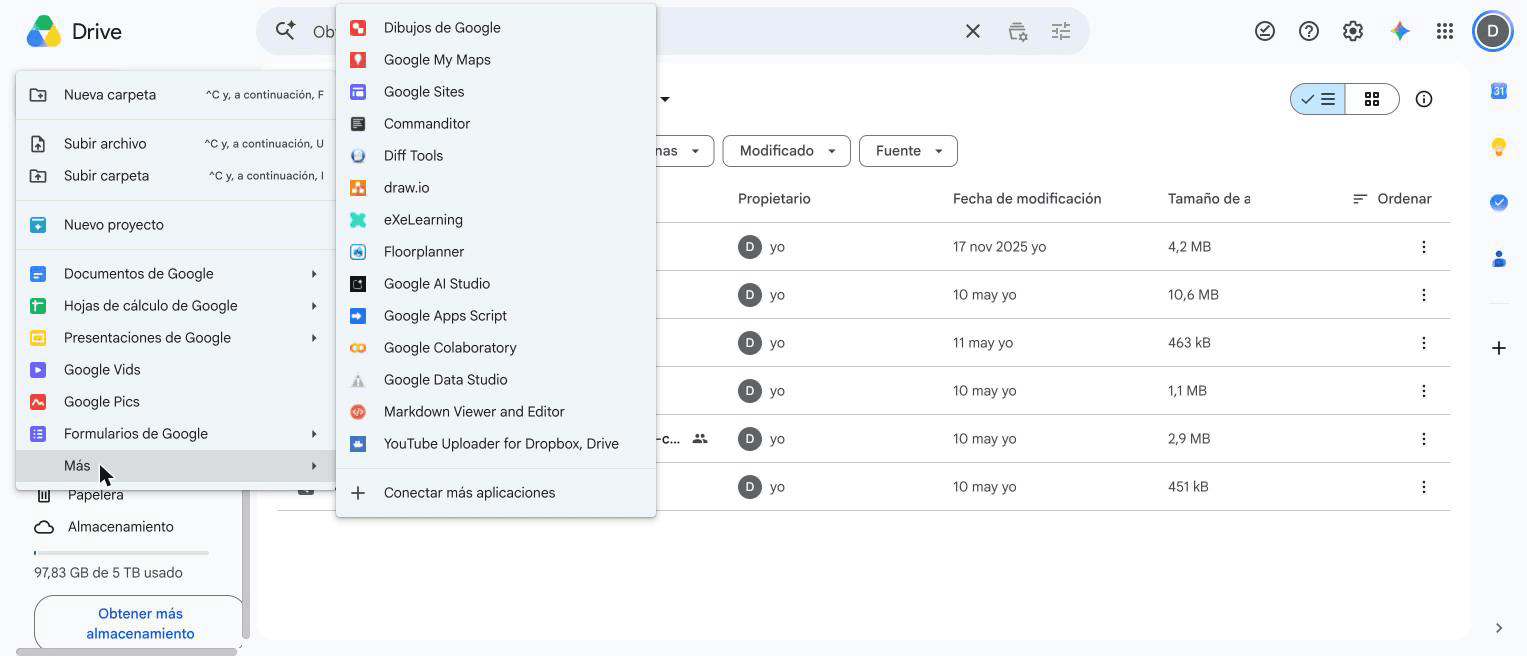
In Drive, click New → More → eXeLearning. The first time, click Authorize and create. The new file is created in the folder you are in and opens in the editor.
Share with students
A public link lets students open the resource in their browser without a Google account.
- Click Share public link, in the preview or in the editor.
-
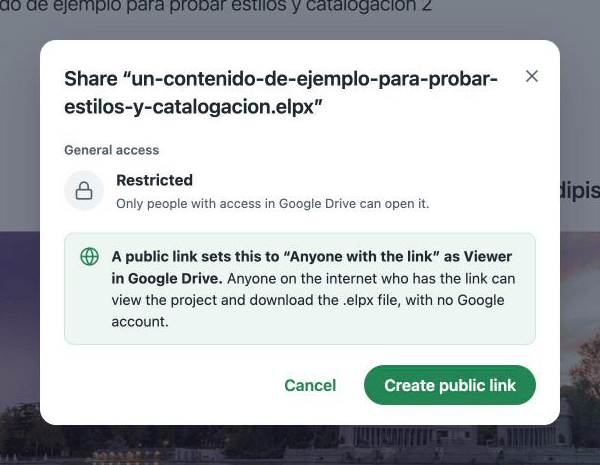
The dialog warns that the file will change to Anyone with the link as Viewer in Google Drive. Click Create public link.
-
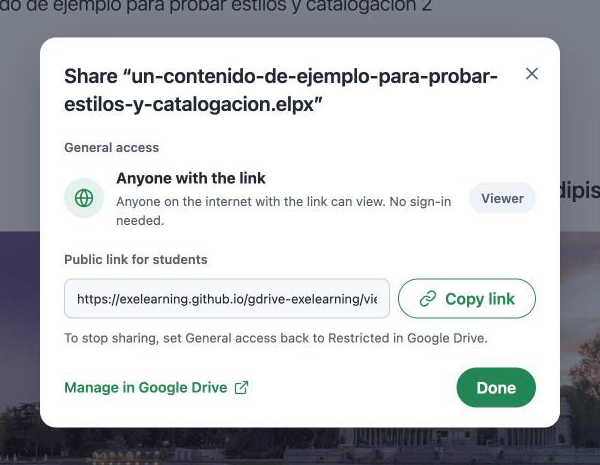
Click Copy link and send the link to your students: in your course, by email or wherever you usually share materials.
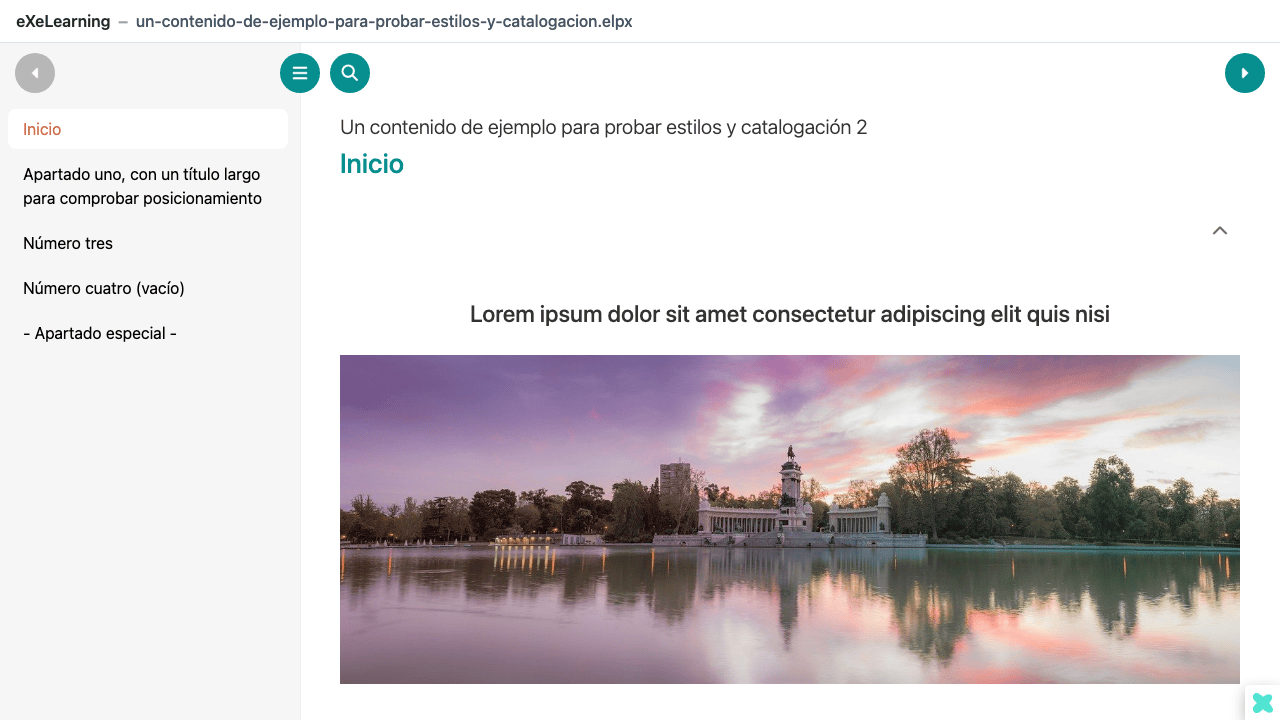
Students see the resource as a website, with its menu, and nothing else to install or sign in to.
Anyone with the link can see and download it
Whoever has the link can view the resource and download its .elpx file. To stop sharing, click
Manage in Google Drive (or use Drive's Share button) and set General access back to
Restricted. The link then stops working.
If your school's Google Workspace does not allow sharing outside the organization, the dialog shows Google's error. You can still share the file with colleagues in your domain using Drive's Share button; they open it with Open with → eXeLearning.
To let other teachers edit the file, use Drive's Share button as with any other file.