eXeLearning in Nextcloud
The eXeLearning app for Nextcloud lets you view, edit and create eXeLearning resources
(.elpx) straight from Files, without downloading them. It helps teachers keep and share their
material in the school cloud.
Try it before installing
Open the demo in Nextcloud Playground
(user admin, password admin). It comes with two sample resources in the exelearning-samples
folder.
For administrators
The administrator installs the app once on the Nextcloud server and it is available to every user; teachers install nothing. If all your schools share one Nextcloud, install it there once.
Requirements
- Nextcloud 31, 32 or 33. With plugin version 4.0.5, Nextcloud 33 only.
- An up-to-date browser (the preview uses Service Workers).
Installation
You need administrator access to the Nextcloud server.
- Download
exelearning-X.Y.Z.tar.gzfrom the latest release. It already includes the editor. - Extract it into Nextcloud's
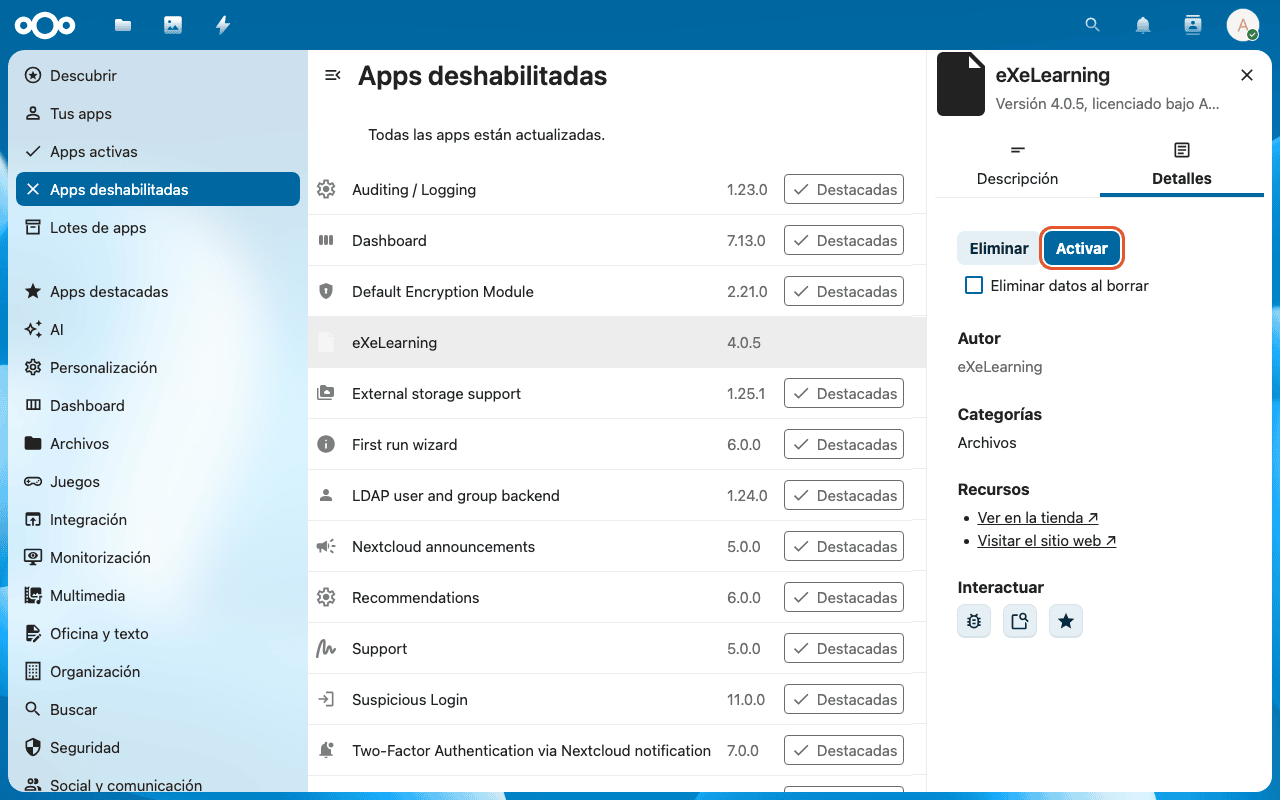
custom_apps/(orapps/) folder. You must end up with a folder namedexelearning. - Open Apps → Disabled apps, select eXeLearning and click Enable (you will be asked for
your password). From the command line:
occ app:enable exelearning.
Recommended: recognise .elpx files
So that Nextcloud shows the right icon and type for .elpx and .elp files, create
config/mimetypemapping.json with:
{
  "elpx": ["application/vnd.exelearning.elpx", "application/zip"],
  "elp": ["application/vnd.exelearning.elpx", "application/zip"]
}
and run occ maintenance:mimetype:update-js and
occ maintenance:mimetype:update-db --repair-filecache.
Configuration
The app has no settings.
For teachers
Create a new resource
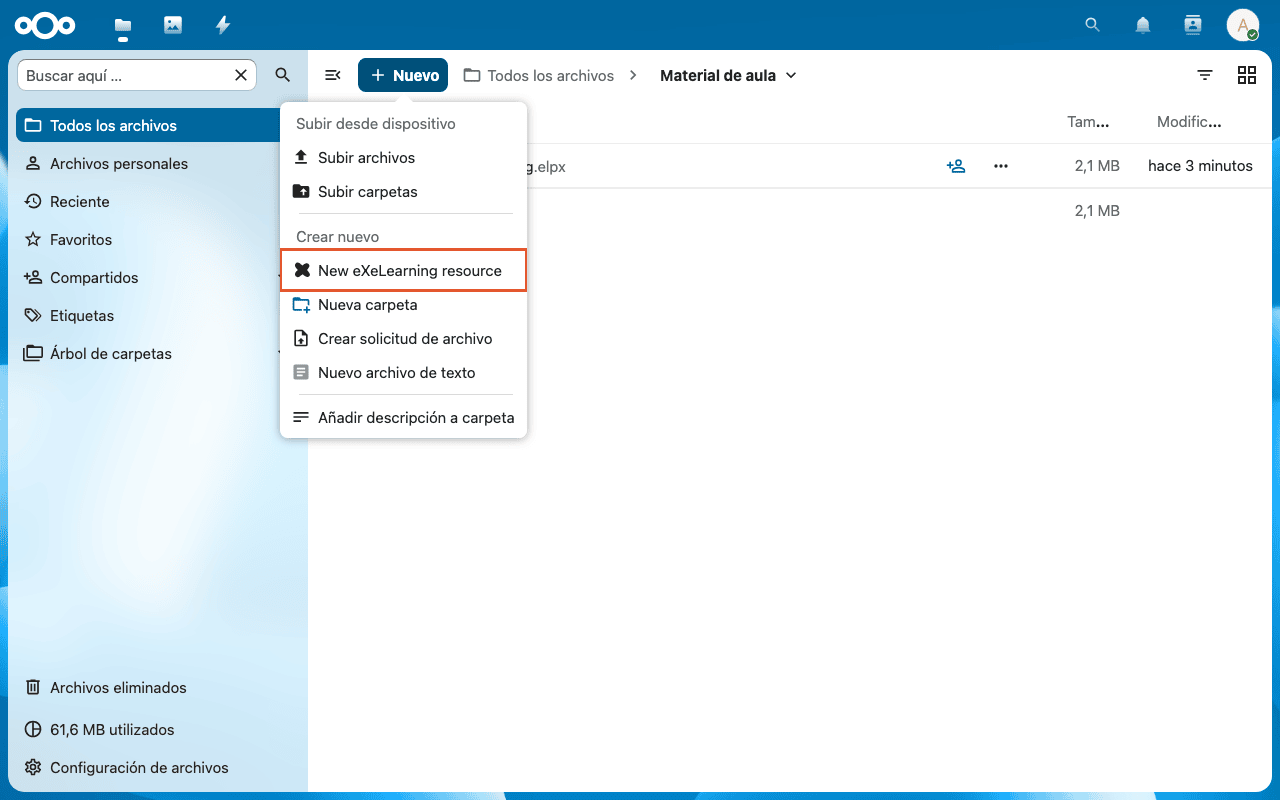
In Files, click New → New eXeLearning resource. The file is created and opens in the editor.
View a resource
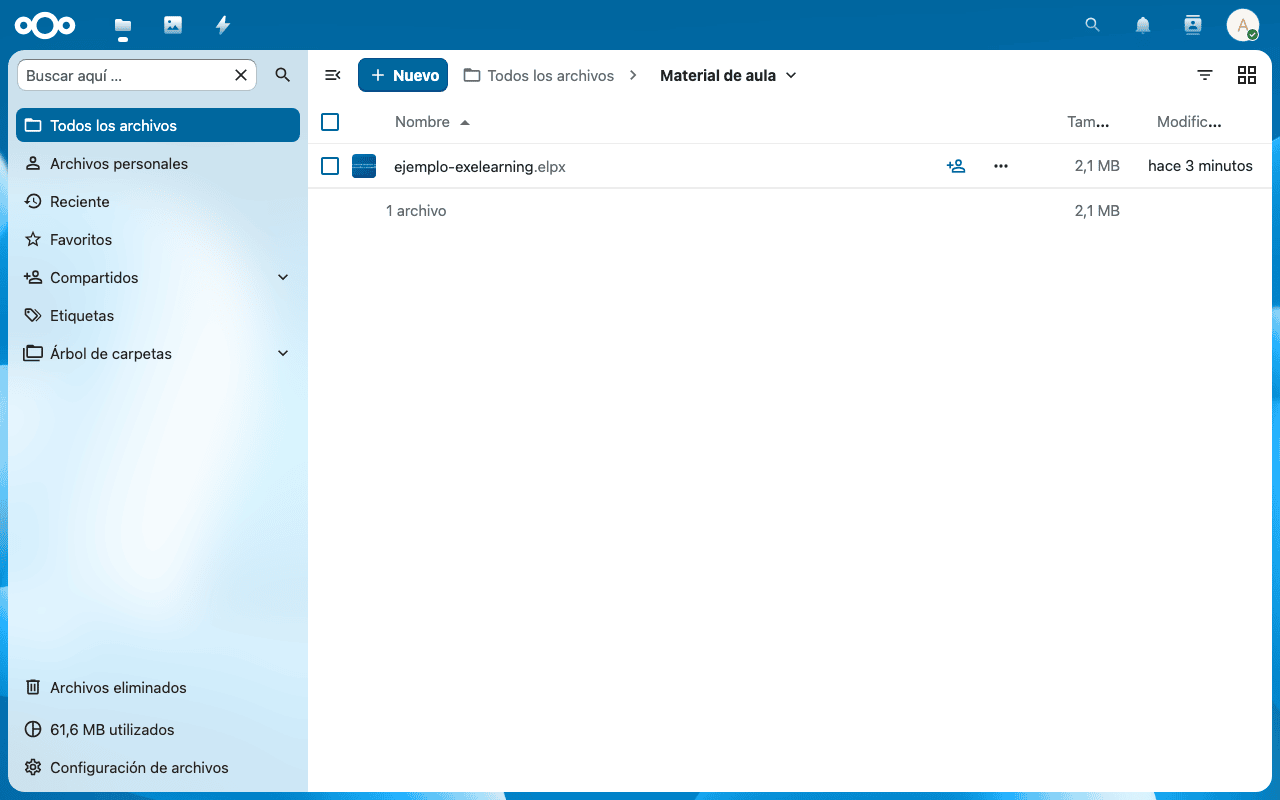
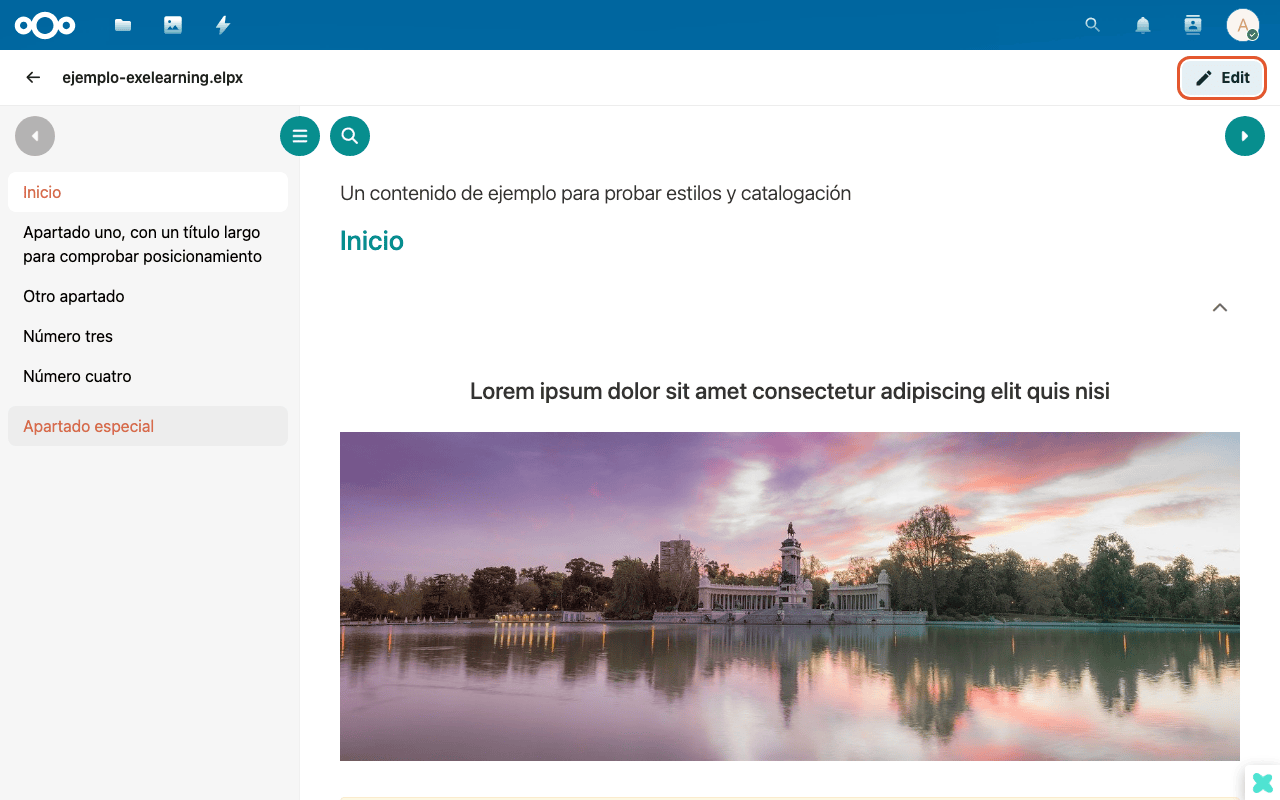
Upload the .elpx like any other file and click it. The preview opens with the content ready to
browse.
Edit a resource
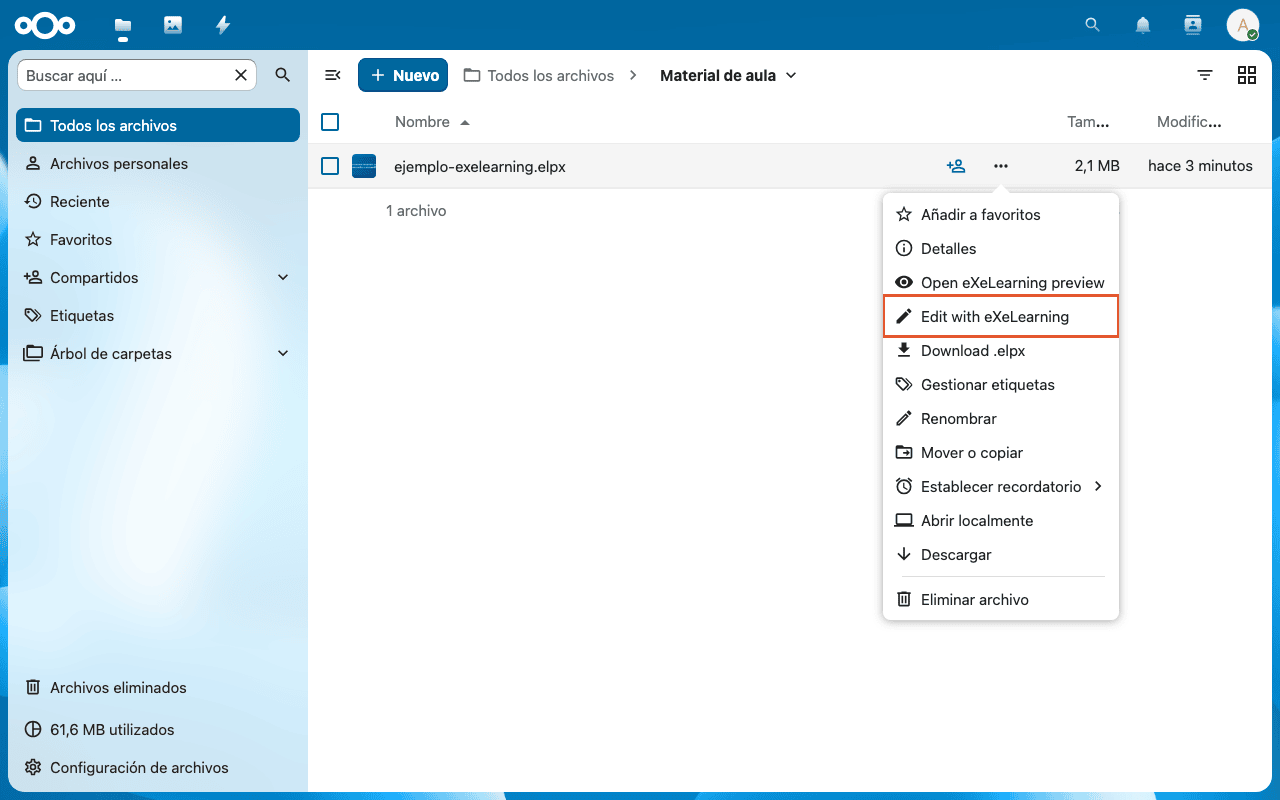
From the preview click Edit, or open the file's … menu and choose Edit with eXeLearning.
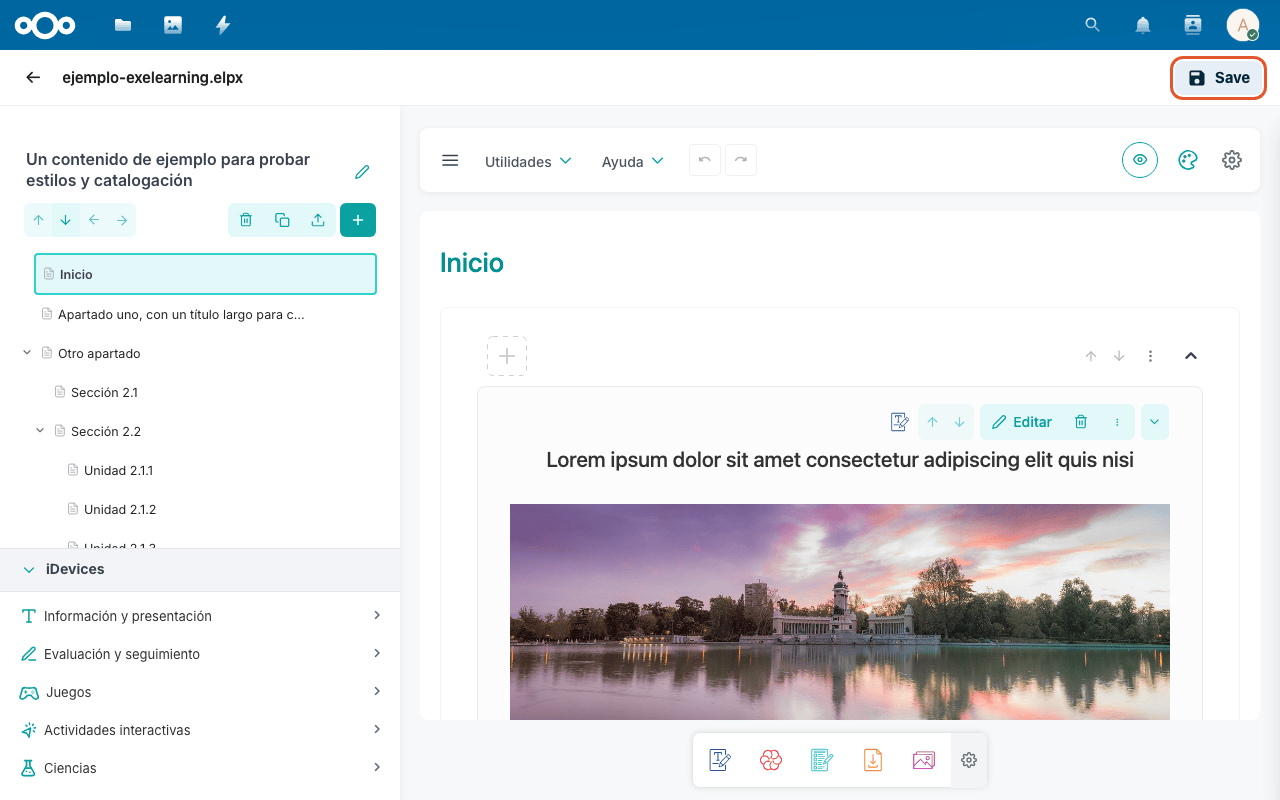
In the editor, click Save to store your changes in Nextcloud.
Old .elp files
They open in the editor with Open in eXeLearning editor and are saved as .elpx.
Share
Share the resource with Nextcloud's usual sharing (users, groups or a public link).