eXeLearning in Moodle
There are three eXeLearning plugins for Moodle. They install the same way and can live side by side on the same site.
| In the activity chooser | Plugin | Use it for… | Grades |
|---|---|---|---|
| eXeLearning resource | mod_exelearning |
Graded interactive activities. Recommended. | One column per exercise |
| eXeLearning (SCORM) | mod_exescorm |
Content that must be a SCORM 1.2 package | One overall grade |
| eXeLearning (website) | mod_exeweb |
Reference material, no grade | Not graded |
Try it before installing
Each plugin has a demo in Moodle Playground that opens in your browser. The links are in the overview.
For administrators
A site administrator installs and configures the plugins once for the whole site; teachers do not install anything.
Requirements
| Plugin | Moodle | Release file |
|---|---|---|
mod_exelearning |
4.5 or later | mod_exelearning-X.Y.Z.zip |
mod_exescorm |
4.2 or later | mod_exescorm-X.Y.Z.zip |
mod_exeweb |
4.2 or later | mod_exeweb-X.Y.Z.zip |
Each ZIP is about 30 MB because it includes the eXeLearning editor. If your Moodle limits the
upload size, raise it or install the plugin by unzipping it into the server's mod/ folder.
Installation (all three plugins)
You need a Moodle site administrator account.
- Download the latest release ZIP from the requirements table.
-
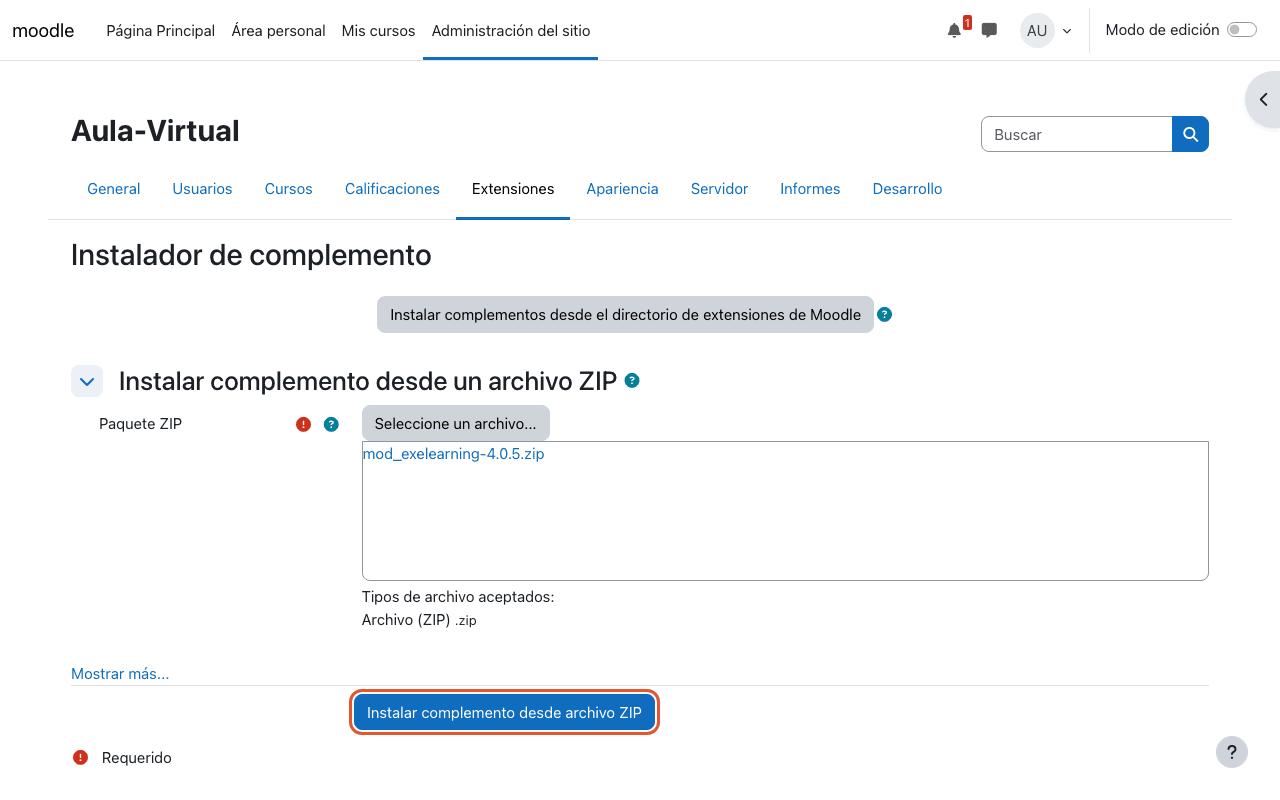
Go to Site administration → Plugins → Install plugins, drop the ZIP into ZIP package and click Install plugin from the ZIP file.
-
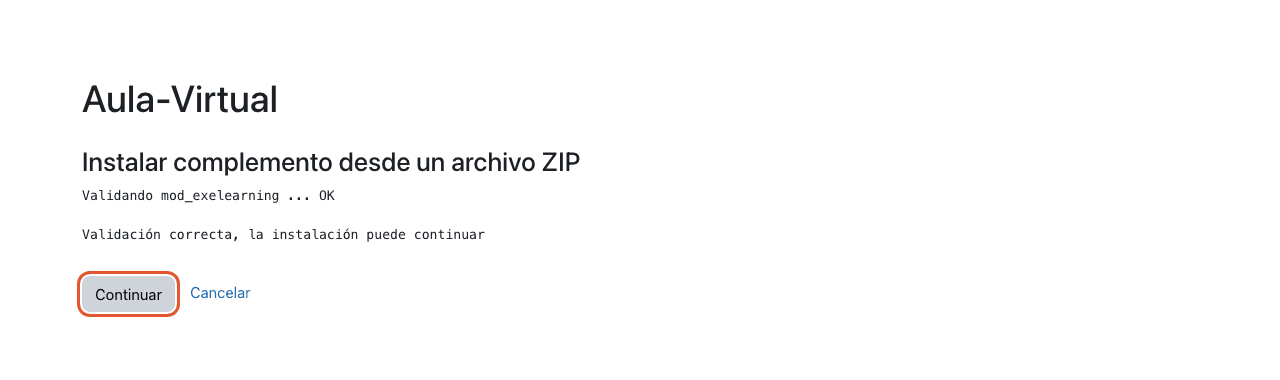
Moodle checks the package. If validation passes, click Continue (and Continue again on the server checks page).
-
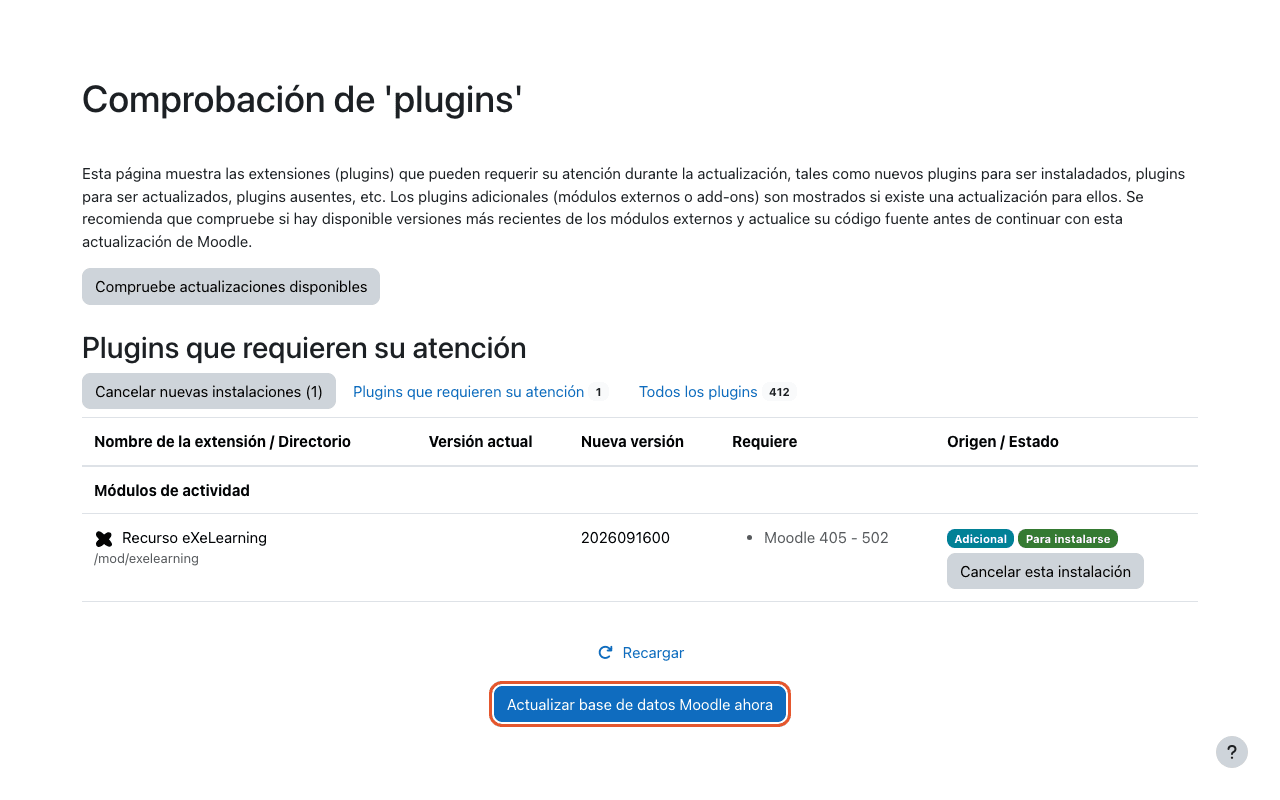
Click Upgrade Moodle database now. When it finishes, click Continue and, on the New settings page, Save changes.
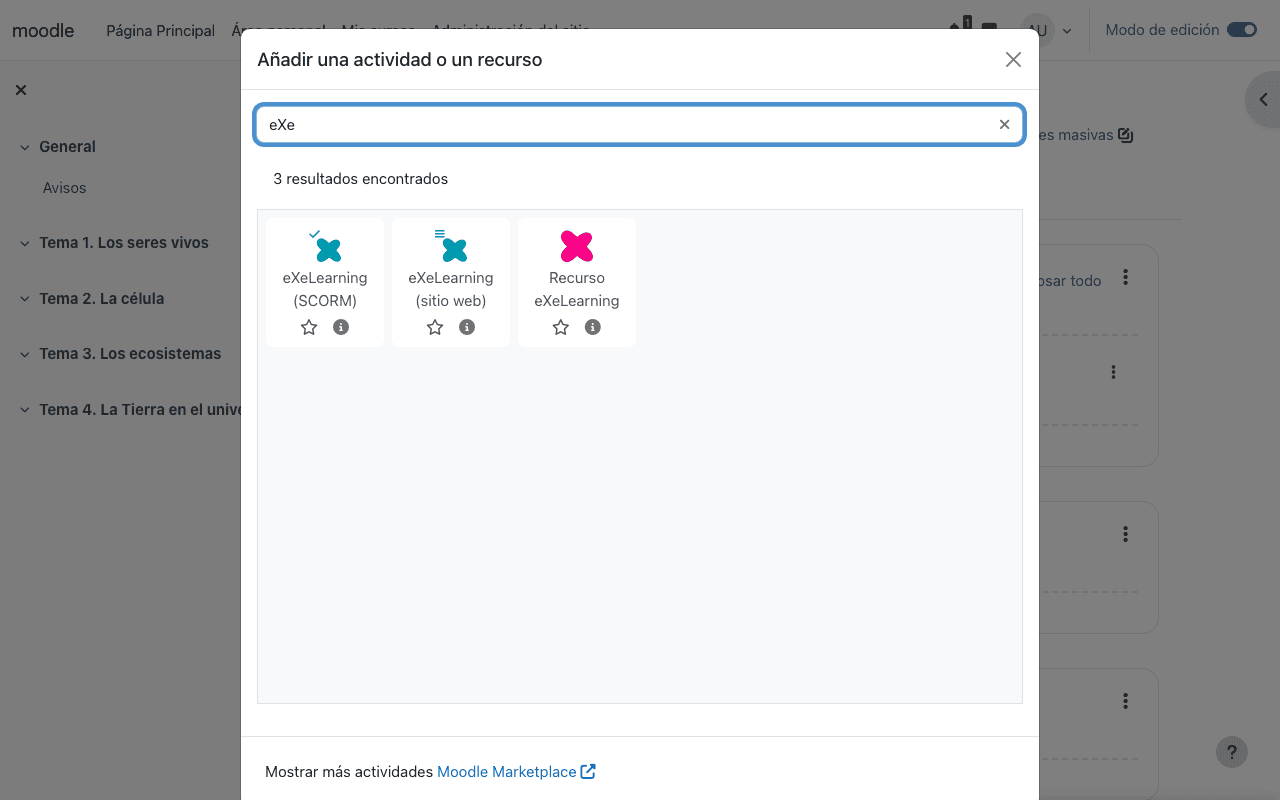
Repeat for each plugin you want to use. Once installed, they appear under + → Activity or resource in every course:
Manual installation
If you cannot upload the ZIP from the web, unzip it on the server (mod/exelearning,
mod/exescorm or mod/exeweb) and visit Site administration → Notifications.
Regional or multi-site deployments
Install the plugins once per Moodle site (for example, the regional Moodle that all schools share). Every teacher in every course then has them; there is no per-teacher installation.
Configuration
eXeLearning resource (mod_exelearning)
None. It works right after installation. In Site administration → Plugins → Activity modules → eXeLearning resource you can disable the embedded editor or manage the available styles.
eXeLearning (SCORM) (mod_exescorm)
Required. After installation the plugin expects an eXeLearning Online server. To use the bundled editor instead:
- Go to Site administration → Plugins → Activity modules → eXeLearning (SCORM).
- Set Editor mode to Integrated editor (embedded) and save.
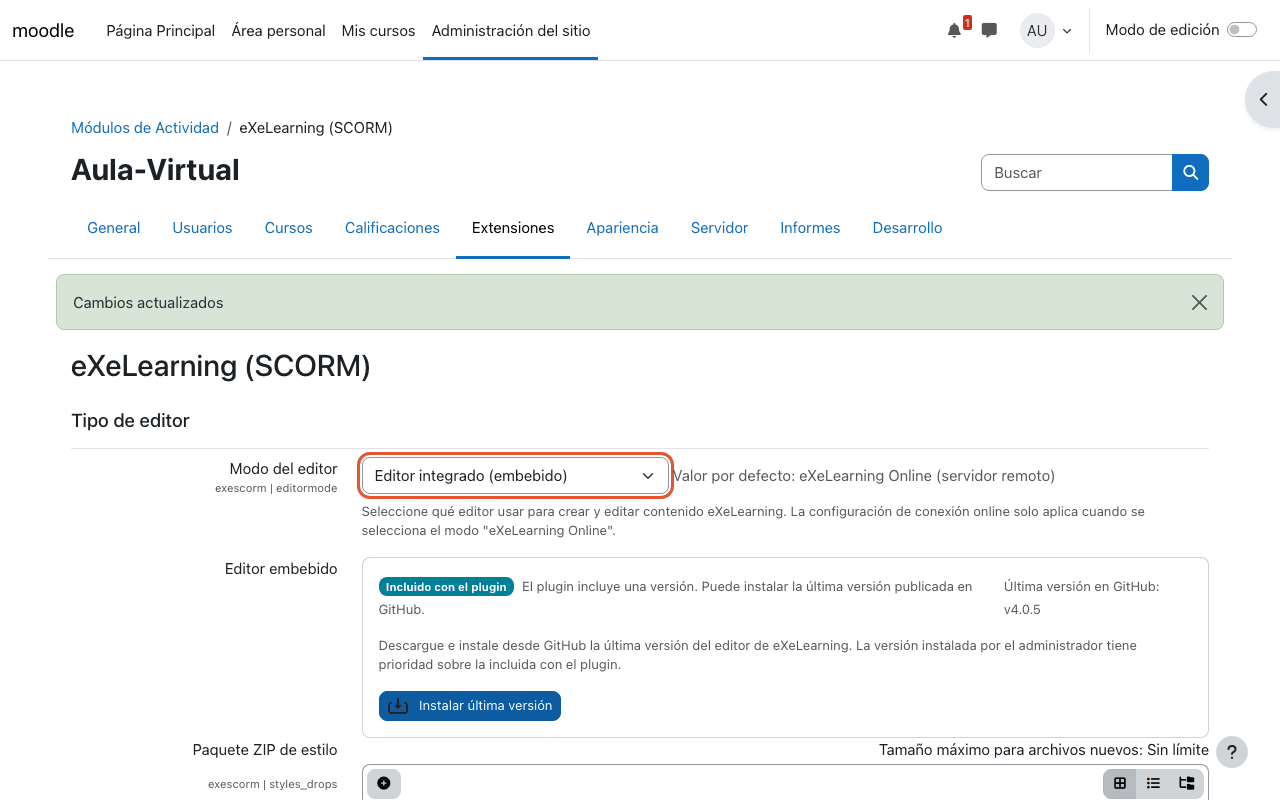
Do you run an eXeLearning Online server?
Keep eXeLearning Online (remote server) and fill in the Remote URI and Signing key of your server. See Deployment to install one.
eXeLearning (website) (mod_exeweb)
Required. Same as the SCORM plugin:
- Go to Site administration → Plugins → Activity modules → eXeLearning (website).
- Set Editor mode to Integrated editor (embedded) and save.
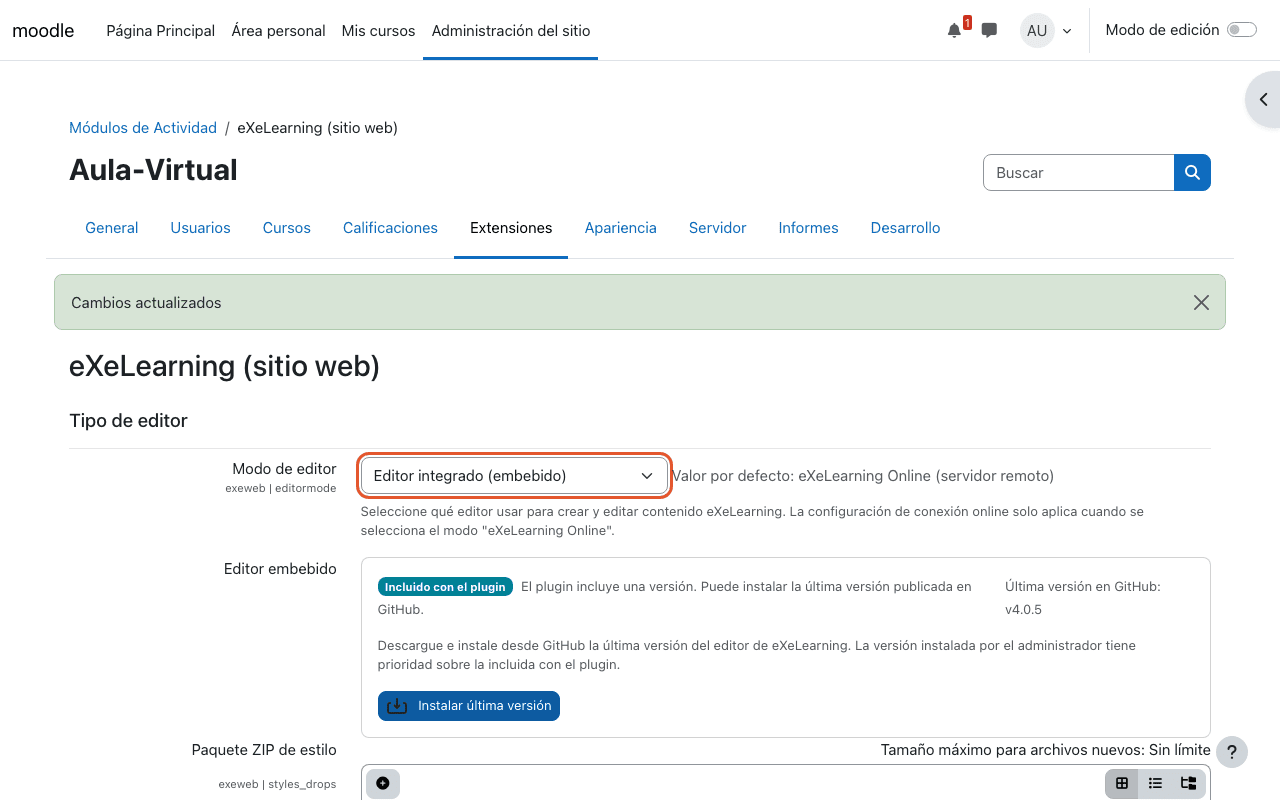
Migrating from mod_exeweb or mod_exescorm
You can move existing mod_exeweb and mod_exescorm activities to mod_exelearning. With
mod_exelearning and one of the others installed, a Migrate to eXeLearning page appears in site
administration.
Backups
All three plugins take part in Moodle course backup and restore, content included.
For teachers
eXeLearning resource (mod_exelearning)
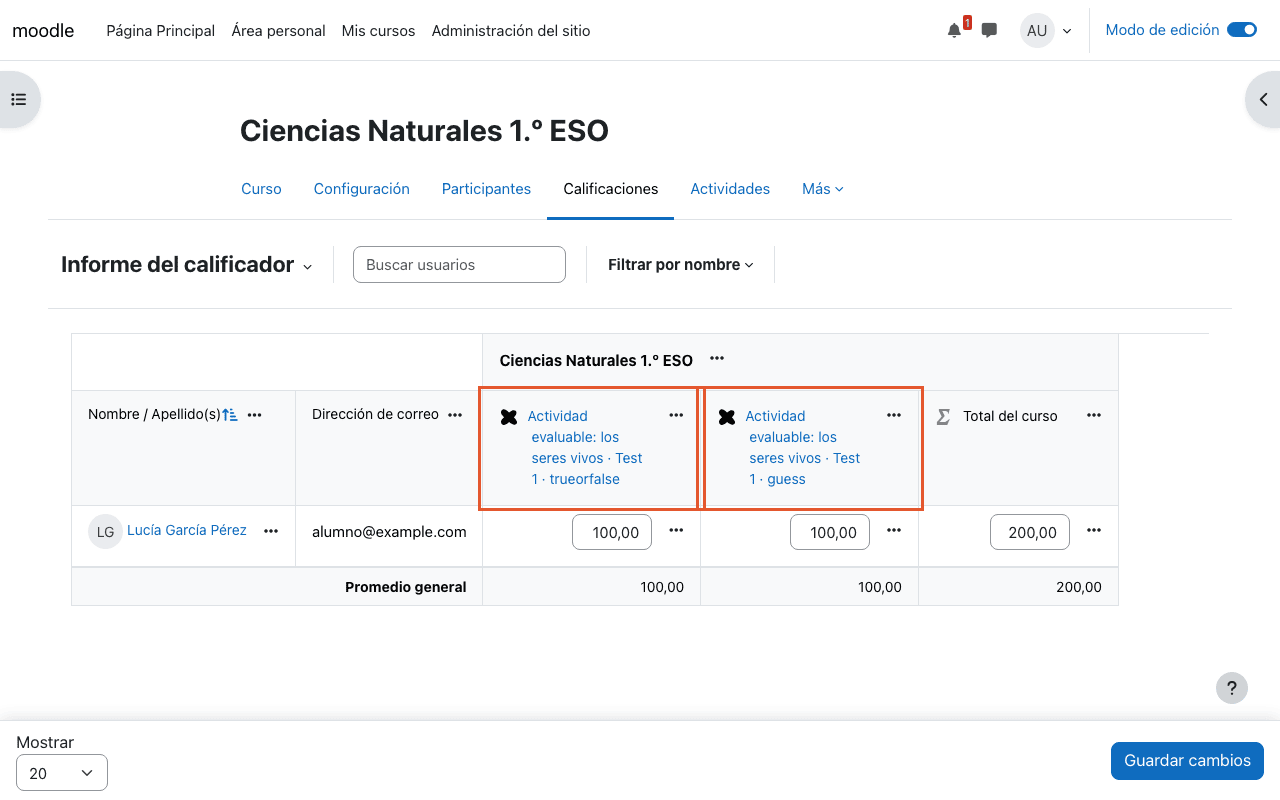
Create, edit and grade eXeLearning resources inside Moodle. The resource keeps its own side menu and each graded exercise gets its own column in the gradebook (or a single overall grade, if you prefer).
Create an activity
- In the course, turn Edit mode on, click + → Activity or resource and choose eXeLearning resource.
- Type a name. If you already have the resource, upload it in Package file. If you leave it empty, the activity starts blank and you build it with the editor.
-
Under Grade, choose one column per exercise or one overall grade (Gradebook columns) and, under Attempts management, how many attempts are allowed and how they are graded.
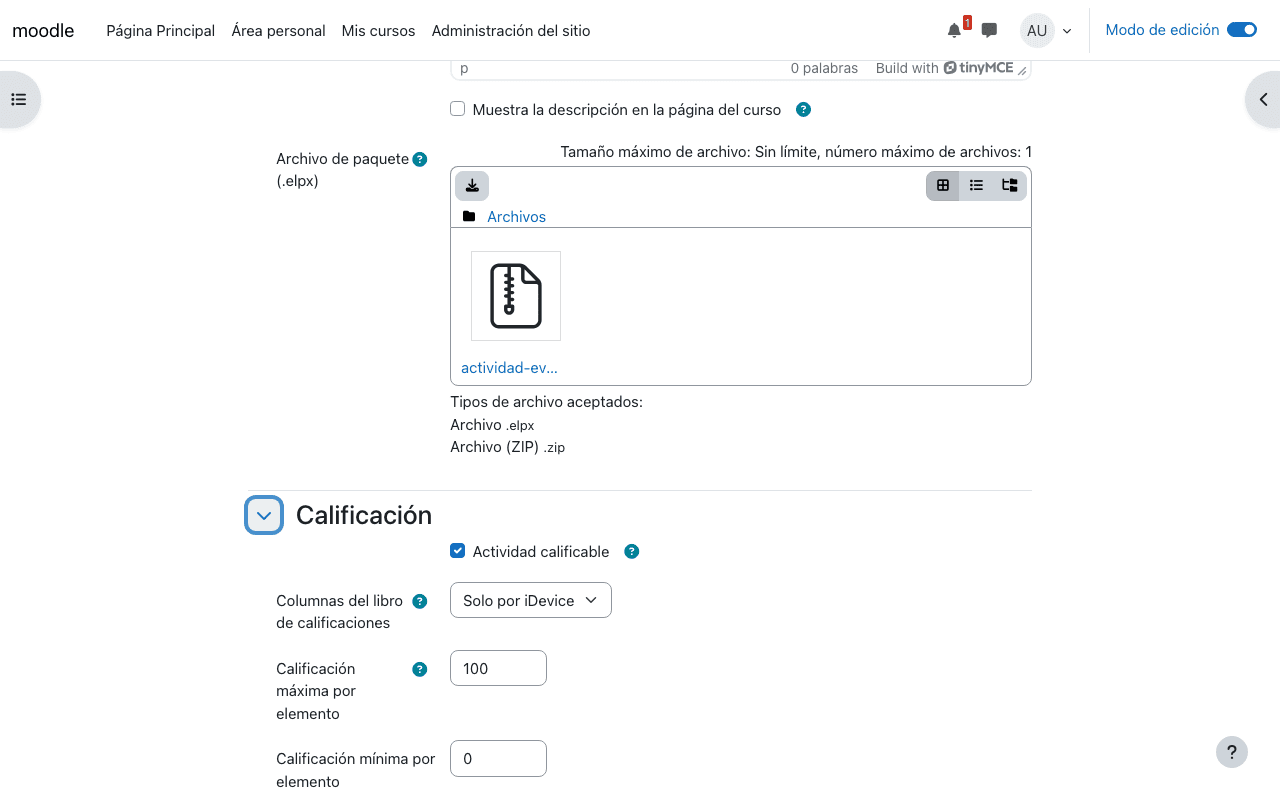
-
Click Save and display. Moodle detects the graded exercises and creates their columns.
Edit the content
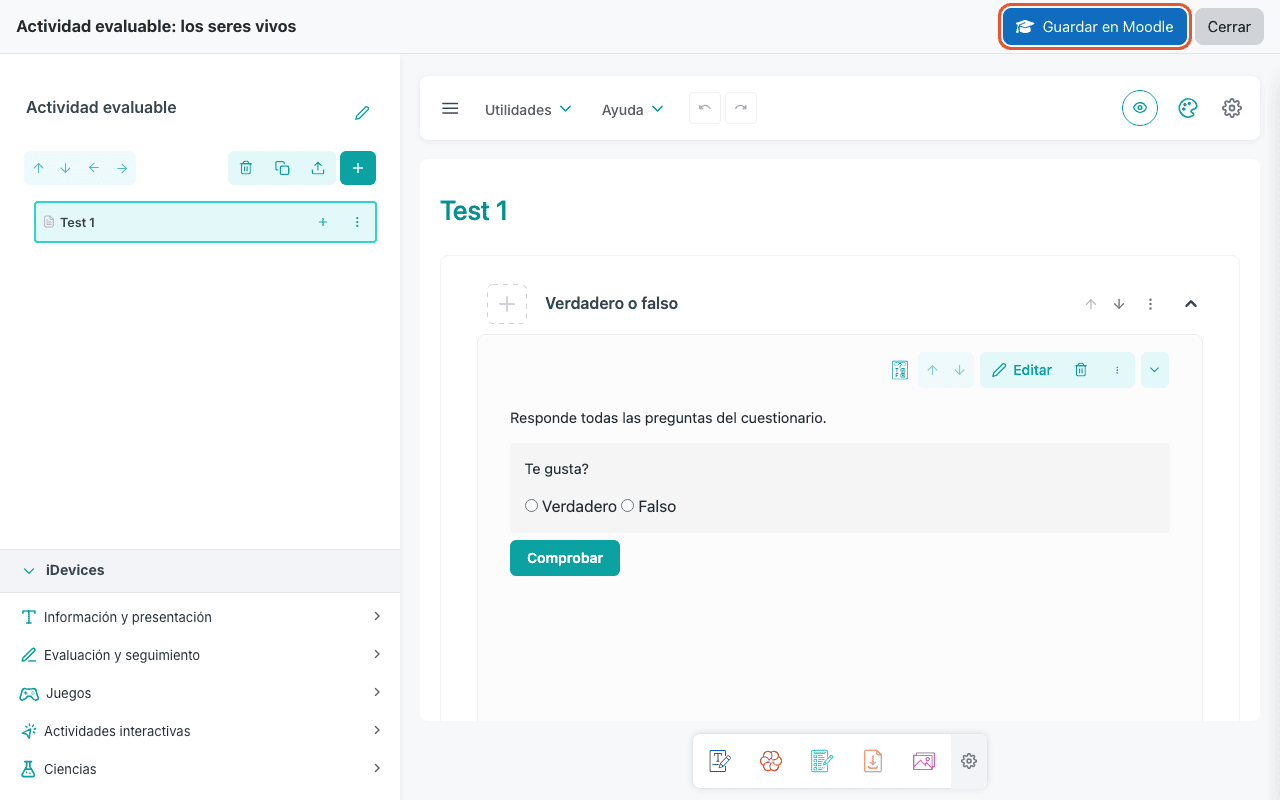
On the activity page, click Edit with eXeLearning:
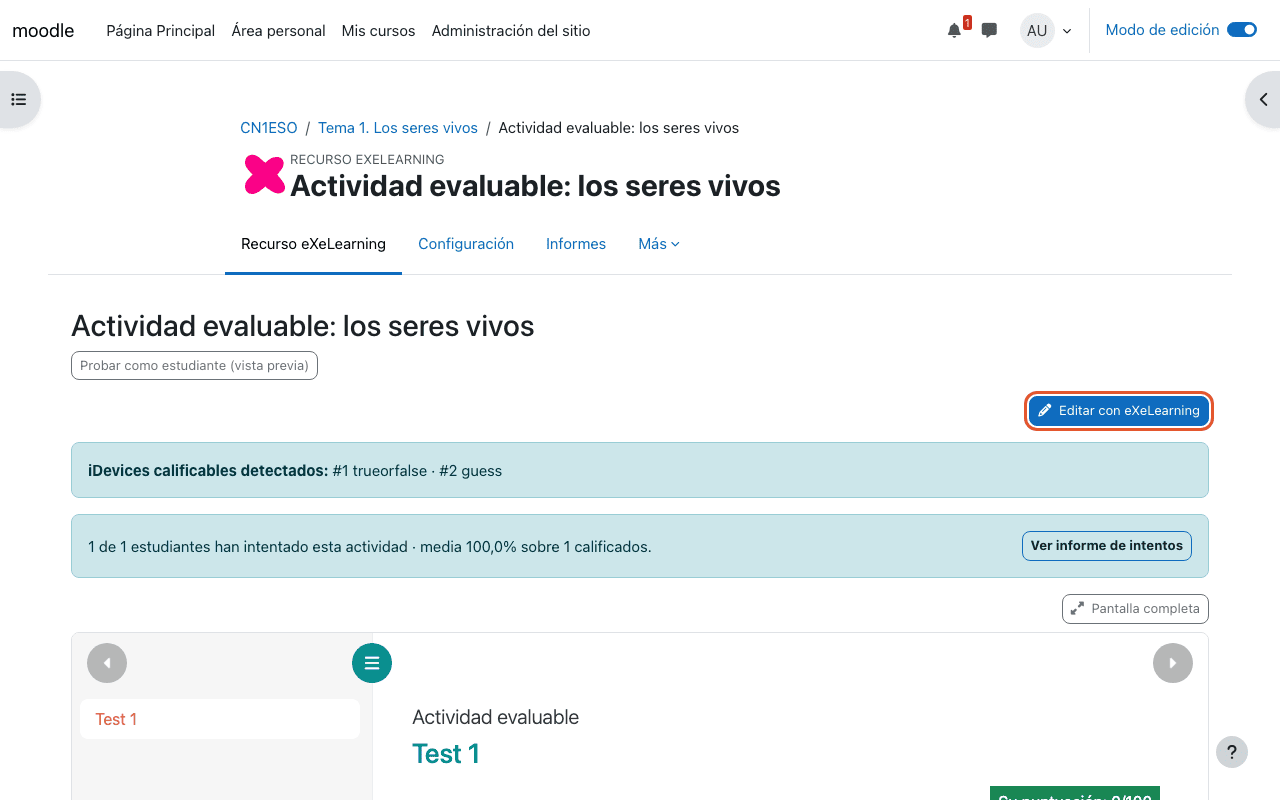
The editor opens full screen. When you are done, click Save to Moodle: students see the new version and the grade columns update themselves.
See the results
Scores go to the course gradebook, with one column per exercise:
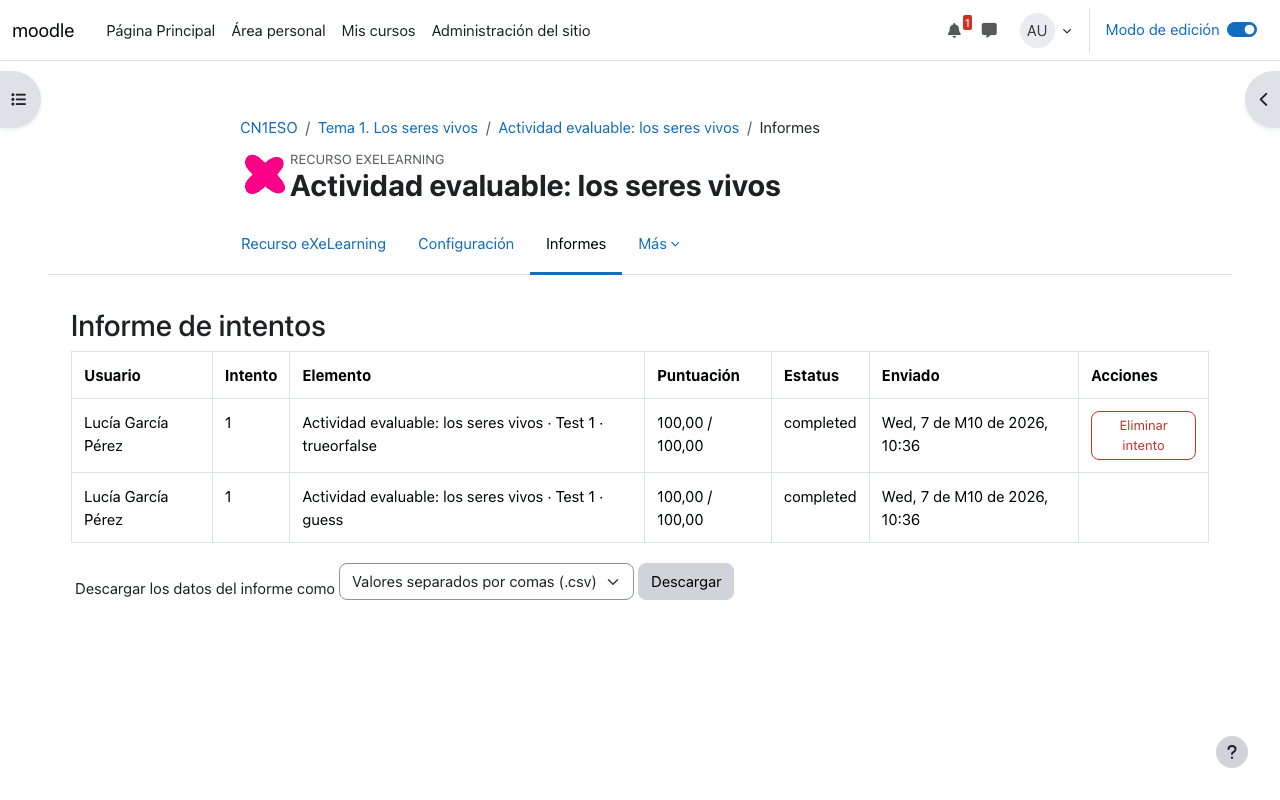
From the activity, View attempts report shows the detail for each student, attempt and exercise:
Try as a student
Try as a student (preview) shows the activity exactly as students will see it. Answers given in the preview are not saved.
Exercises that are graded
True or false, guess, quick questions, drag and drop, fill in the blanks, classify, relate, sort, identify, discover, crossword, word search, puzzle, trivia, A-Z quiz, math problems and operations, and scrambled list.
eXeLearning (SCORM) (mod_exescorm)
Create and edit eXeLearning content that Moodle plays as a SCORM 1.2 package, with attempts, score and completion, and one overall grade in the gradebook.
Create an activity
- + → Activity or resource → eXeLearning (SCORM).
-
Under Package → Type, choose Create with eXeLearning to start from scratch, or Uploaded package to upload a SCORM
.zipor an.elpx.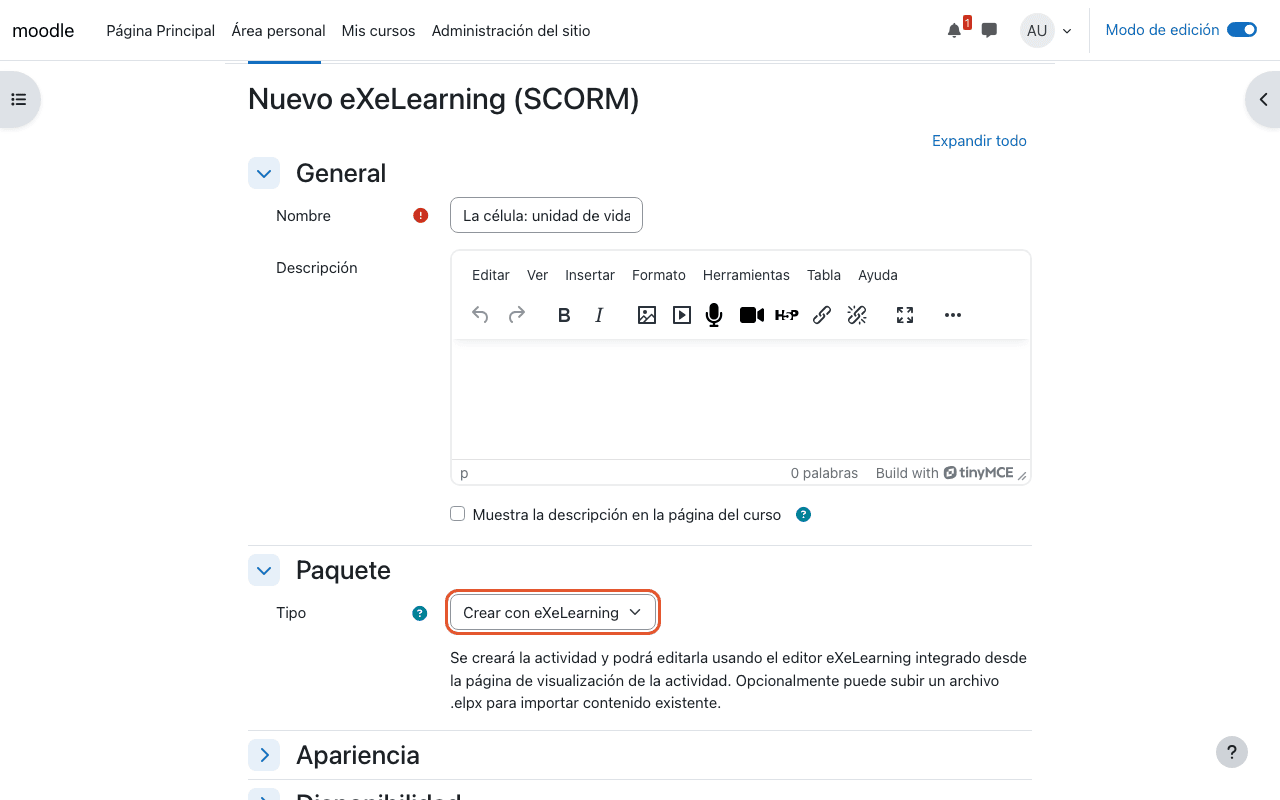
-
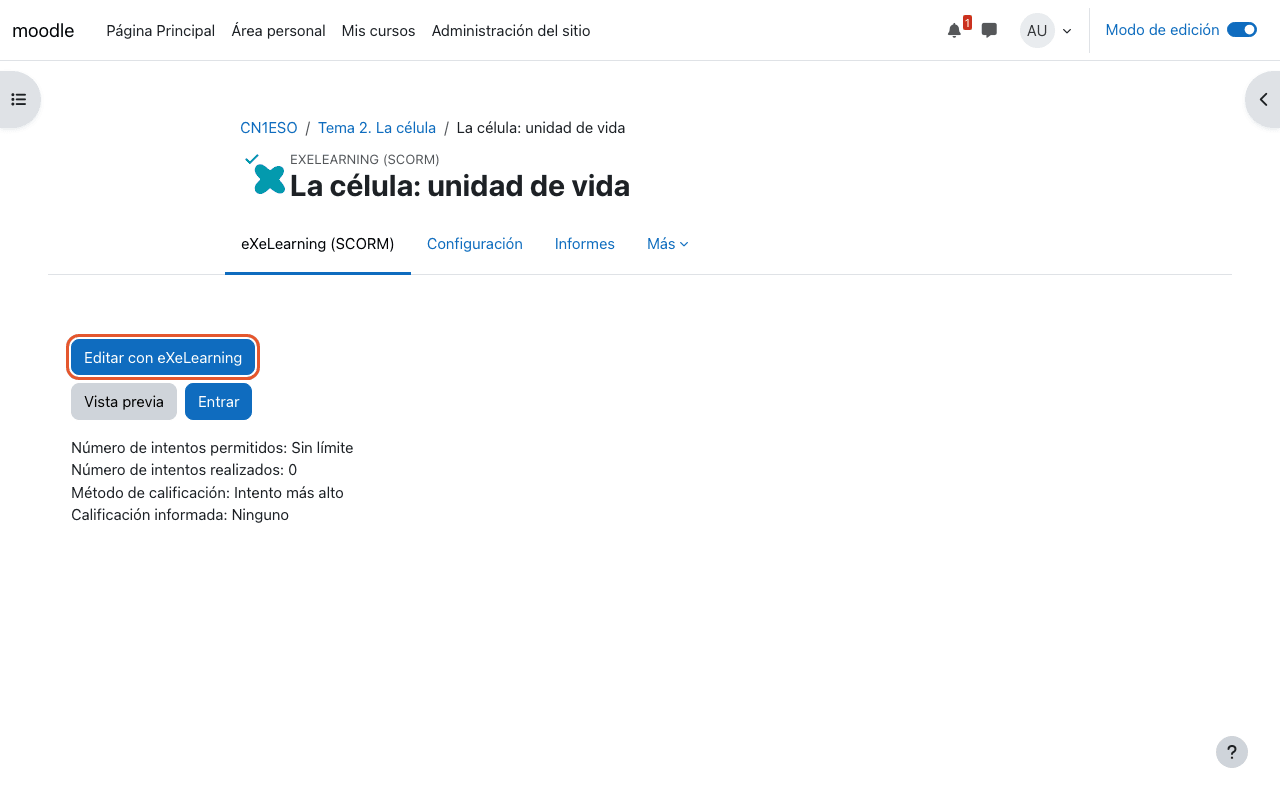
Save. On the activity page, Edit with eXeLearning opens the editor; save with Save to Moodle.
If you upload an .elpx
Open it once with Edit with eXeLearning and save it, so it is converted into a SCORM package. Students cannot play it until then.
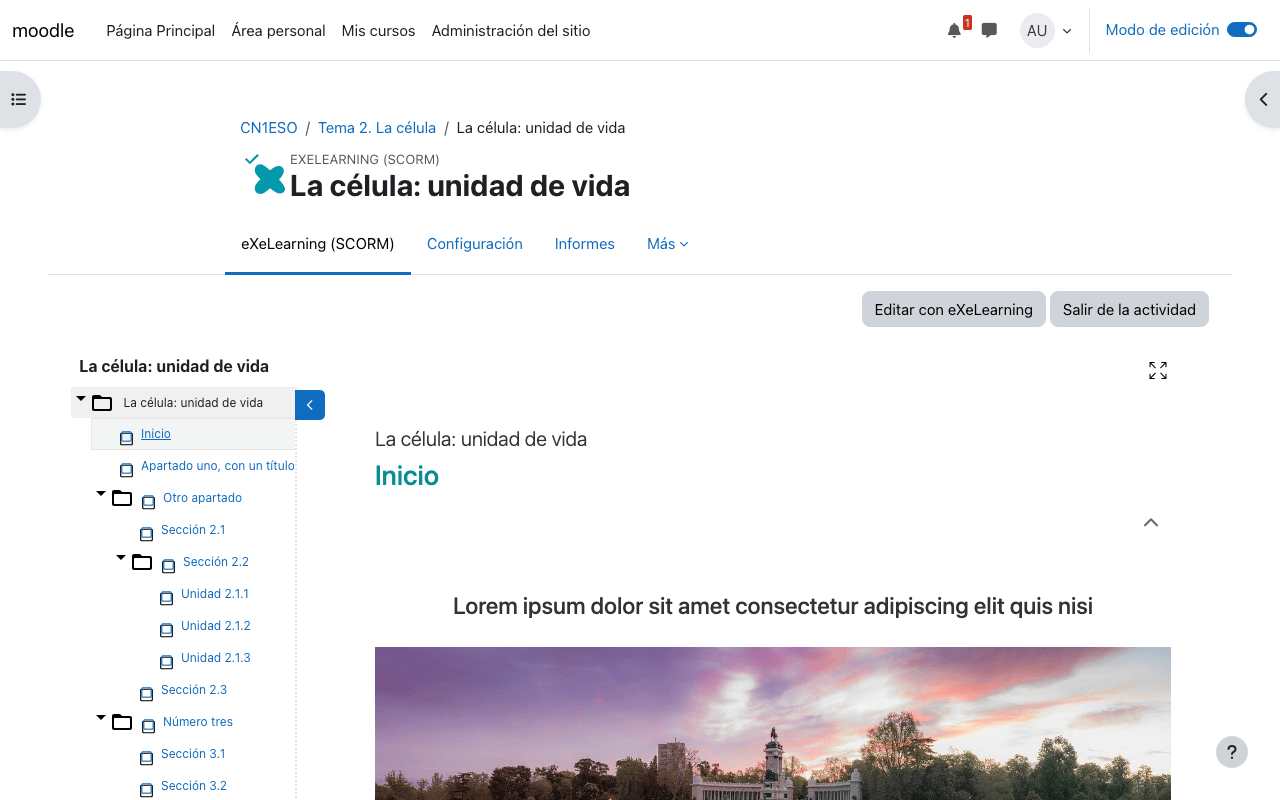
Students click Enter and Moodle tracks their progress. Results are in Reports and in the gradebook.
eXeLearning (website) (mod_exeweb)
Shows eXeLearning content as a website embedded in the course, with its own menu. It does not grade; it only records that the resource was viewed (activity completion).
Create a resource
- + → Activity or resource → eXeLearning (website).
-
Under Package → Type, choose Create with eXeLearning (embedded editor) or Uploaded package (
.zipor.elpx).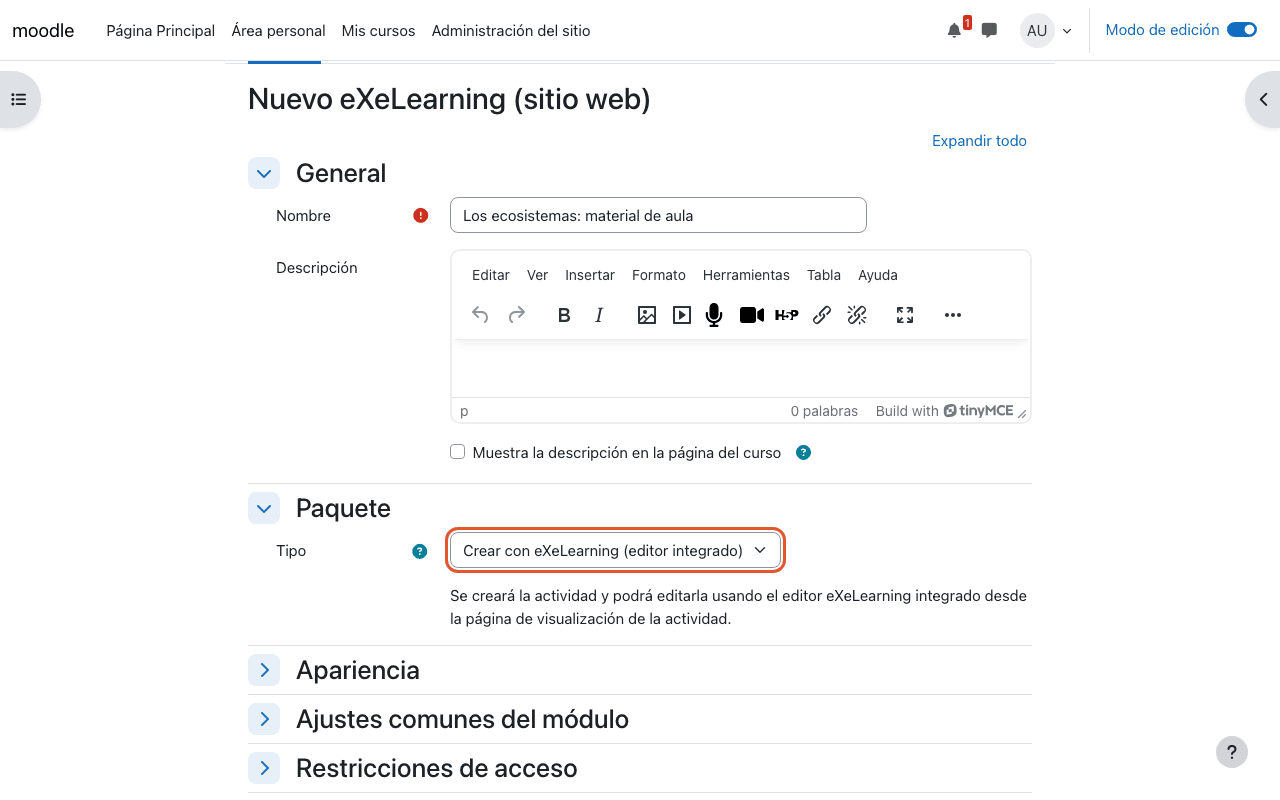
-
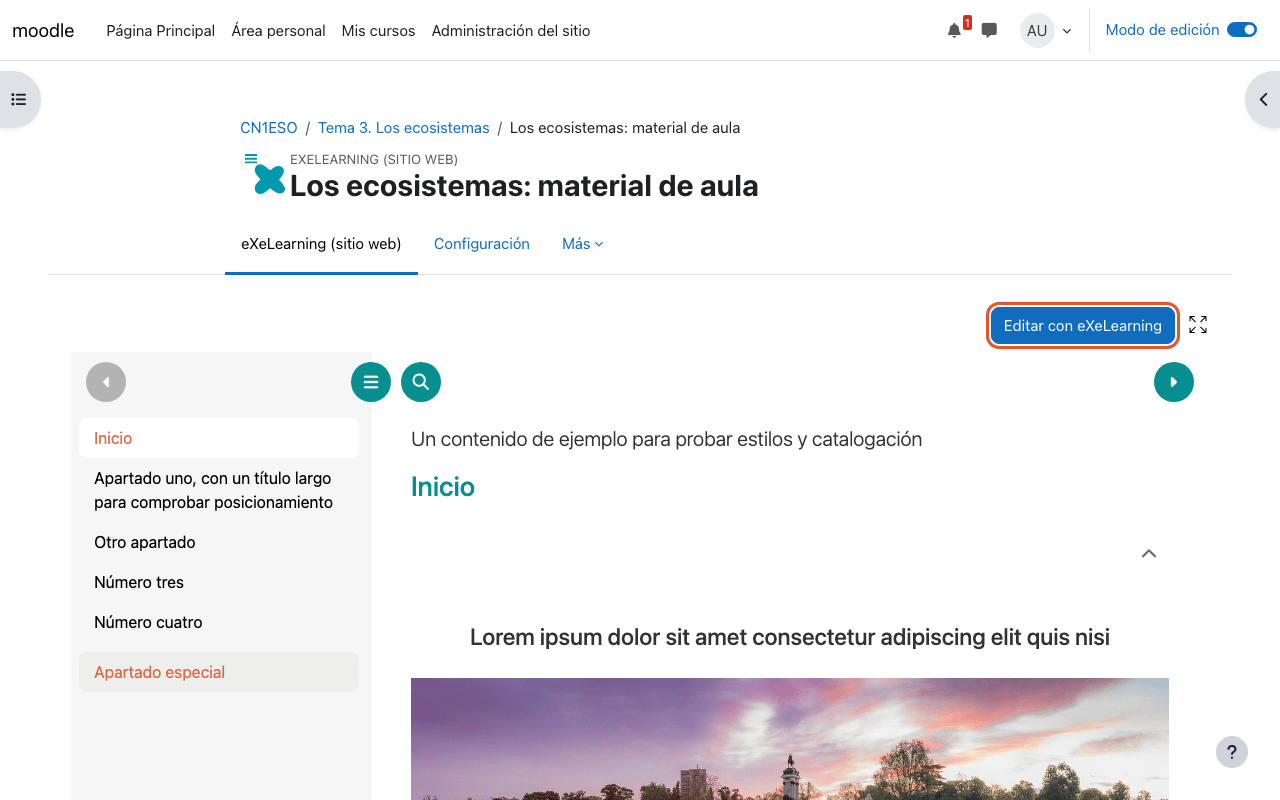
Save. The content is shown on the page; Edit with eXeLearning opens the editor.
Frequently asked questions
- The Edit with eXeLearning button does not appear.
- Check that your user can edit the course. If it can, ask your Moodle administrator to check that
the published release ZIP was installed (the source code has no editor) and that
mod_exescormandmod_exewebuse Integrated editor (embedded) mode (see Configuration).